Get started as a leader
When you lead a group, the app adds a Lead page for you. It shows the few things only you can do, and the tools for looking after your people. Everything else in the app works the same as it does for every member.
Find your Lead page
- Open Lead. On a computer, look in the sidebar under Leading and choose Lead. On a phone, tap More in the bar at the bottom, then Lead.
- Or start from Home. Home has a Leading card with your next meeting and anyone to follow up. Choose All leader tools at the bottom of the card to open Lead.
- Read the top of the page. It says how many things need you, for example "3 to lead", or All clear when
nothing does.
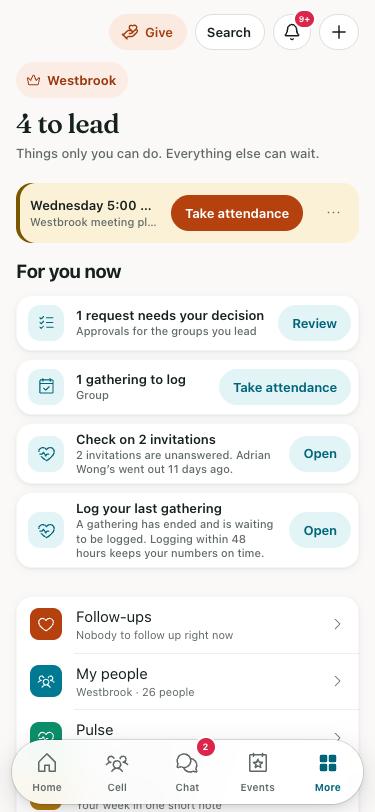
- Work through For you now. Each row is one thing waiting for you, with one button: Review, Open or Take attendance. The list of tools underneath is always there when you need it.
Check your people and approve anyone waiting
-
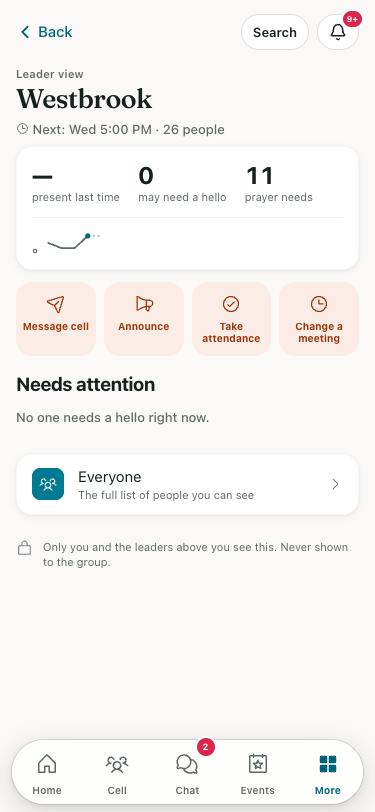
Open My people. On Lead, choose My people. You see your group, how many came last time and who may need a hello. If you lead more than one group, you see each group below you instead.
-
See everyone. Choose Everyone for the full list of people you can see.
-
Approve requests to join. On Lead, choose Join requests. People who asked to join through your community's join page are waiting there: choose Approve or Reject. See Approve a join request.
-
Answer other requests. If something a member posted needs your decision before it goes out, For you now shows a row like "1 request needs your decision". Choose Review. See Approve posts and events waiting for you.
Take attendance at your next meeting
- Find your meeting. On Lead, your next meeting shows at the top with its day, time and place. The Leading card on Home shows it too.
- Choose Take attendance. The page asks Who’s here?. Attendance opens 30 minutes before the gathering starts.
- Tap anyone who couldn't come. Everyone starts as here, so you only tap the people who were away.
- Save it. Choose Save attendance. If you didn't meet, choose We didn’t meet this week instead. More in Take attendance at your group's gathering.
See who's been missing
- Open Follow-ups. On Lead, choose Follow-ups. When you save attendance from Lead, the app takes you there.
- Read why each person is listed. Each name says why, such as "Missed 2 in a row" or "New and not yet connected", or when they were last seen.
- Say hello. Choose Say hi to send a short message you can edit first. The person is then marked Contacted. More in See who's been missing.
If something looks different
There's no Lead in the menu. Lead appears once your community has made you a leader. If you lead a group and still don't see it, ask your community's organisers.
There's no Take attendance button. Taking attendance needs the Gatherings & attendance module, and a regular gathering set up for your group. See Set up your group's regular gathering, or ask your community's organisers.
My people says "We couldn’t load this. Please try again." My people is built from Pulse. You can still see your group's members in the Cells directory: select your group, then Members.
Was this helpful?
Still stuck? Ask the Belonging team: open Help in the app (on a phone it’s under More; on a computer, click your name at the bottom of the menu) and choose Ask the app team. The answer comes to your email.