Post an announcement to your group
This is for communities that use Announcements. If you can’t find it in your app, your community hasn’t switched it on.
An announcement goes to everyone in the audience you choose. You pick who gets it first, and the app tells you straight away whether it goes out at once or someone checks it first.
-
Open the composer. On Lead, choose Compose ("Post, announcement, event or prayer"), then Announcement. The page is called New post.
-
Choose who gets it. Under 1 · Who gets this, pick your group or a wider audience. Each choice says what would happen: You can post when it goes straight out, or who checks it first.
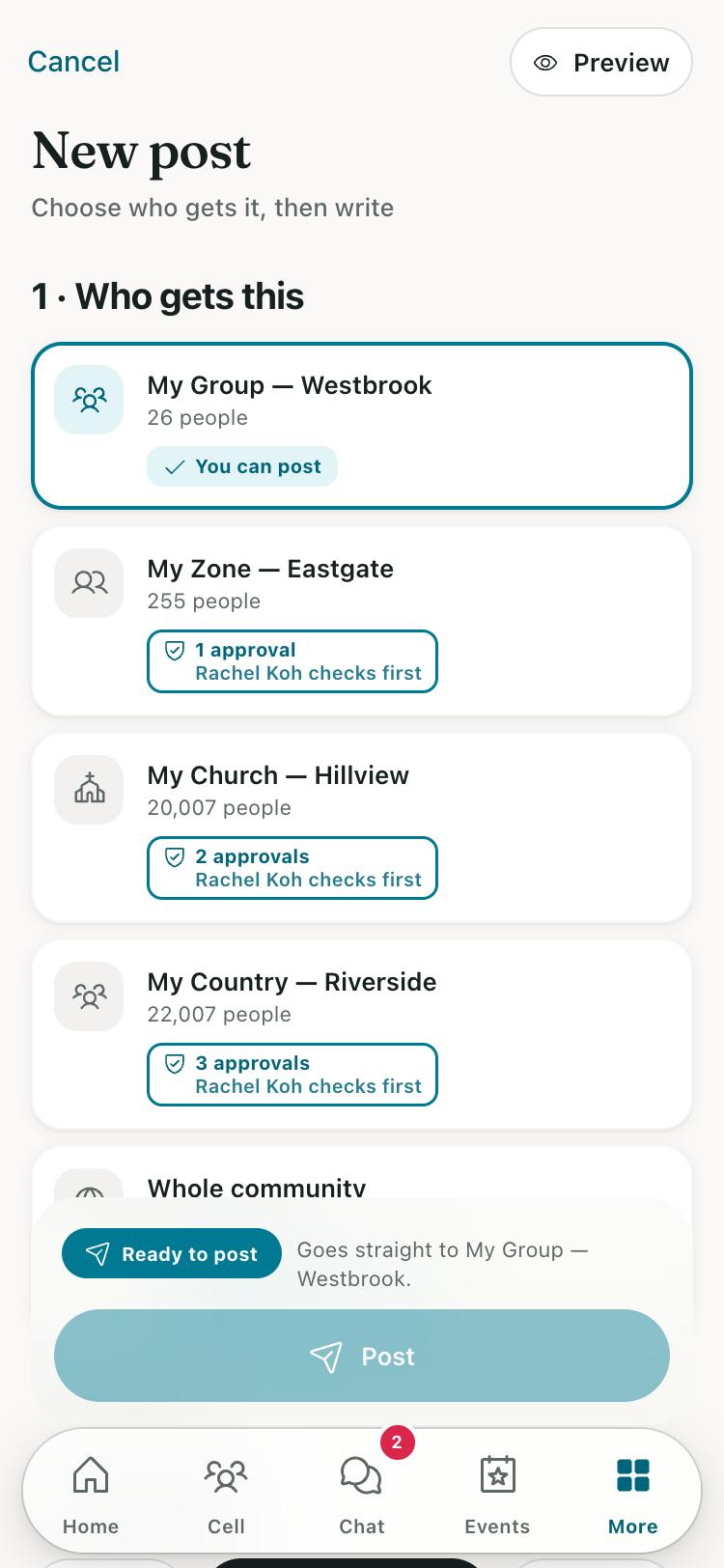
-
Choose what kind. Under 2 · What kind, leave Announcement selected. Event and Prayer open their own forms.
-
Write it. Under 3 · Write it, add a Title and the Content. A Subheading, a Footer and a Photo are optional. Members can react to it, but not reply.
-
Check it if you like. Choose Preview at the top to see it as members will.
-
Post. The button at the bottom says what will happen: Post, or "Send to" the person who checks it. Choose it.
You land on Leaders corner, with a message such as "Posted to" and your group's name, or "Sent to … for approval". Choose Undo on that message if you posted by mistake.
If something looks different
"You can’t post to anyone yet." Your role can't post announcements. Ask your community's organisers.
"Needs a check" The audience you picked is wider than you can post to on your own. Someone above you checks it, then it goes out as yours. See Approve posts and events waiting for you for what they see.
Where to find what you've posted. On Lead, choose Sent to see what's waiting and what's live. It's there when your community uses Approvals & Review.
Was this helpful?
Still stuck? Ask the Belonging team: open Help in the app (on a phone it’s under More; on a computer, click your name at the bottom of the menu) and choose Ask the app team. The answer comes to your email.