See who's been missing
Follow-ups lists the few people worth a quick hello right now: who missed the last gatherings, who is new and not yet connected, and who asked for prayer. Only you and the leaders above you see it.
-
Open Follow-ups. On Lead, choose Follow-ups. On Home, the Leading card also lists the first few people to follow up this week.
-
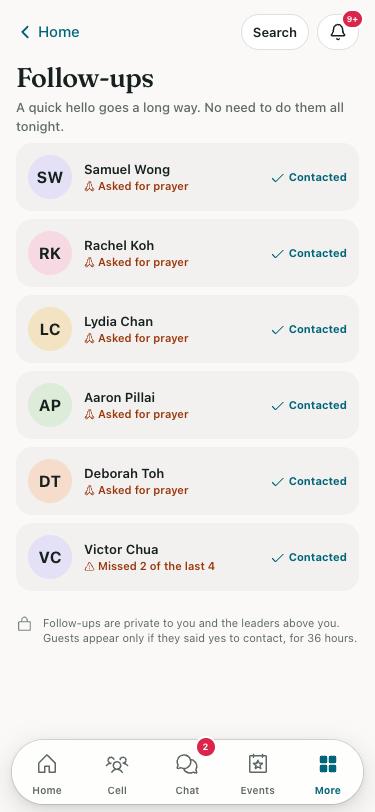
Read why each person is listed. Under each name is the reason, such as "Missed the last gathering", "Missed 2 in a row", "Missed 2 of the last 4", "New and not yet connected" or "Asked for prayer".
-
Say hello. Choose the button next to the name: Say hi, Welcome for someone new, or Check in for someone who asked for prayer. Edit the message if you like, then choose Send to and their name.
-
See who you've reached. The person is marked Contacted, so you can see at a glance who's left.
Already been in touch?
- Open the person. Select their name on Follow-ups.
- Say what you did. Under Already in touch?, choose I called, I visited, I said hi or We had coffee. See Log a follow-up to log several people at once. They're marked Contacted and leave your list for now. Choose Undo next to Contacted if you picked the wrong person.
From the same place you can also choose Message to open a chat, or open the person's page to see their gatherings and last contact.
If you see Care & follow-up instead
If you lead more than one group, or your community doesn't use Pulse, Follow-ups shows Care & follow-up: everyone in the part you lead who hasn't joined anything for a while.
- Choose how long. Next to Not seen for, pick 14 days, 30 days, 60 days or 90 days.
- Read each line. It says when the person was last seen, when they were marked away, or No activity yet.
- Say hi. Choose Say hi, or select the name for the other ways to get in touch.
If something looks different
"Everyone was there" Nobody needs a follow-up right now. Thanks for checking in on everyone.
Nobody is ever listed as missing a gathering. Misses come from the attendance you save. If your community doesn't use Gatherings & attendance, or your group's attendance isn't being saved, only new people and prayer requests are listed.
Guests on the list. Guests you added when taking attendance appear for 36 hours, and only if they said yes to being contacted. Choose Welcome, edit the message, and choose Send to open it in WhatsApp.
Was this helpful?
Still stuck? Ask the Belonging team: open Help in the app (on a phone it’s under More; on a computer, click your name at the bottom of the menu) and choose Ask the app team. The answer comes to your email.