Invite someone to your group
Met someone who'd like to come along? Send them an invitation from the app. Each person gets their own link, and joins the group you lead when they accept.
- Open Invite people. On Lead, choose Invite people ("Bring someone to a gathering or your group").
- Check where they'll go. Under Invite to you see the group you're inviting them into.
- Add their details. With One person chosen, type Their name and a Phone number or email. If you type a phone number, add Their email too: they sign in with it.
- Choose how to send it. Under Send by, pick WhatsApp, SMS or Email.
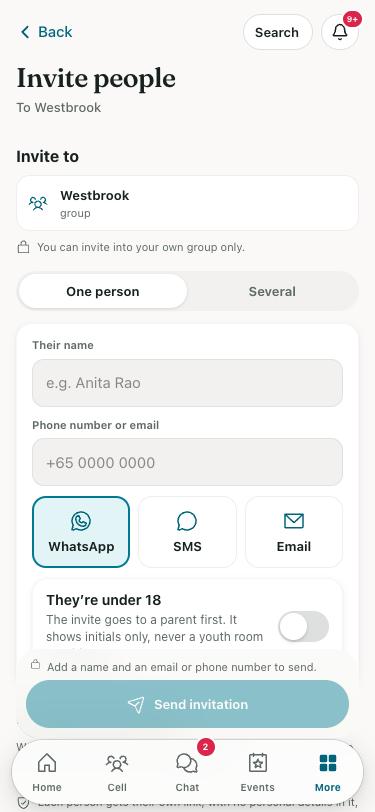
- Send. Choose Send invitation. The app confirms "Invitation sent to" and their name. The link works for 7 days, for that one person.
To invite several people at once, choose Several and paste one name and email per line under Names and contacts. The app shows which lines are ready before anything is sent. These go by email, up to 30 at a time.
Share a link or QR code instead
Under Or share a link or QR, choose Copy link to paste your group's link into a chat, or Show QR for people to scan at a gathering. Anyone who uses it can ask to join, and you approve their request.
See who you've invited
On Lead, choose Sent invitations to see who has seen theirs. After sending, you can also choose See sent invitations.
If something looks different
"Add the country code with a +, for example +91 6370 494 921." Phone numbers need their country code at the front.
"Already in the app or can’t be invited from here." The person may already be a member. Look for them in the Cells directory.
"Inviting someone under 18 through a parent isn’t available yet. Please ask the church office to add them." If you switch on They’re under 18, the app can't send the invitation. Ask your community's office instead.
There's no link to share. The app says your group "has no public page switched on, so there is no link to share yet". Your community's organisers manage that.
Was this helpful?
Still stuck? Ask the Belonging team: open Help in the app (on a phone it’s under More; on a computer, click your name at the bottom of the menu) and choose Ask the app team. The answer comes to your email.