See whether your request was approved
This is for communities that use Approvals & Review. If you can’t find it in your app, your community hasn’t switched it on.
In some communities, a leader checks things before they go live: a prayer request sent to a wider group, an event, a job, a Marketplace listing or an announcement. My requests shows each one you've sent and where it has got to.
-
Open My requests. On a phone, tap More at the bottom right, then My requests (under Me). On a computer, click your name at the bottom of the menu on the left, then All features, then My requests. If Belonging said "Sent for approval" when you posted, you can tap View status there instead.
-
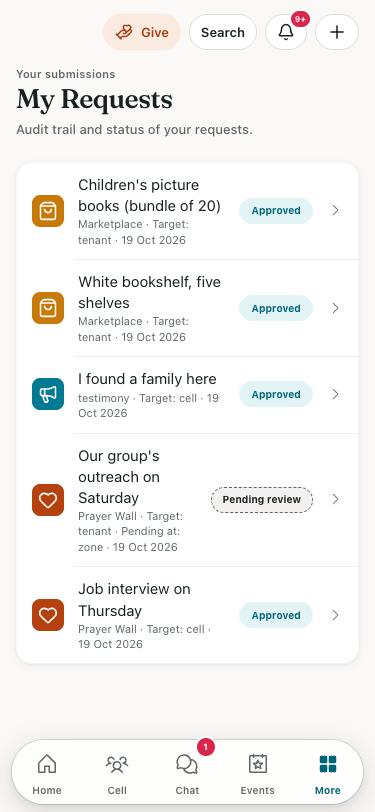
Find it. Each row shows its title, what kind it is (such as Prayer Wall, Events Calendar or Marketplace) and the date it was sent. The label on the right says where it stands:
- Pending review: it's waiting for a leader. "Pending at:" says which level it's waiting at.
- Approved: it's been approved.
- Changes requested: a leader wants you to change something first.
- Rejected: a leader turned it down.
-
Open it for the details. Tap the row. Under Timeline & Audit Trail, each step is listed with who took it and when. Anything a reviewer wrote is under Note / Feedback:. To see what you sent, tap View Content.
You'll get a notification when it's approved or rejected, or if changes are requested, and tapping it opens My requests.
If a leader asks for changes
Read their note under Note / Feedback:. Then open what you posted where it lives (for example, your request in Prayer), make the changes, and save it. It goes back to a leader to review. For a prayer request, see Ask for prayer.
If something looks different
"You haven't submitted any content for review yet." Nothing you've posted has needed approval. Many things go live straight away.
The page is headed Approvals and has tabs You review other people's requests too. Tap My submissions to see your own.
A post in your group isn't here Group posts are checked in the group itself. See Post in your group.
Was this helpful?
Still stuck? Ask the Belonging team: open Help in the app (on a phone it’s under More; on a computer, click your name at the bottom of the menu) and choose Ask the app team. The answer comes to your email.