Find what you've saved
Saved is your own list of things to come back to. "Only you can see this list," and saving never tells anyone.
Save something
Look for the bookmark.
- An event. On the event's page, tap Save. On a phone, it's the bookmark at the top of the page. It changes to Saved.
- A prayer request. In Prayer, tap the bookmark on someone's request. (Your own requests don't have one.)
- A Marketplace listing. On the listing, tap Save at the top.
- A sermon or clip. In Watch & listen, tap Save under the video. You'll see "Saved to My saved".
Open your Saved list
- Open Saved. On a phone, tap More at the bottom right, then Saved (under Me). On a computer, click your
name at the bottom of the menu on the left, then Saved.
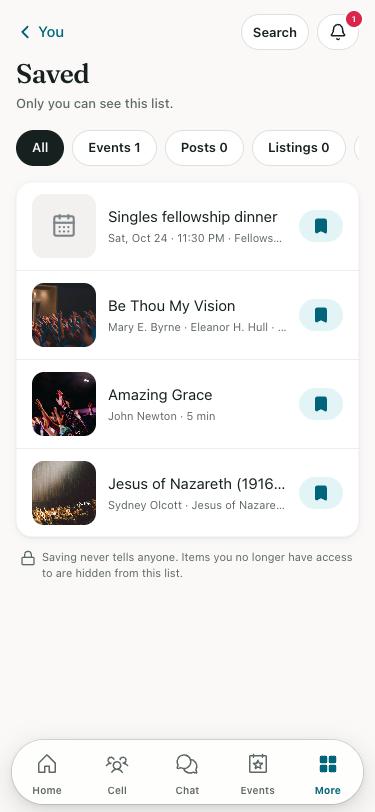
- Show one kind, if you like. Tap Events, Posts, Listings or Watch & listen. Each shows how many you've saved. Posts are the prayer requests you've saved. All shows everything.
- Open one. Tap it.
- Remove one. Tap the bookmark next to it. It leaves the list straight away.
If something looks different
"Nothing saved yet" "Tap the bookmark on an event, post, listing or sermon to keep it here."
Something you saved has gone "Items you no longer have access to are hidden from this list." It may have been removed, or moved where you can't see it.
A course you saved isn't here Courses keep their own list. Open Courses, tap My courses, then Saved.
Was this helpful?
Still stuck? Ask the Belonging team: open Help in the app (on a phone it’s under More; on a computer, click your name at the bottom of the menu) and choose Ask the app team. The answer comes to your email.