Catch up on your notifications
The bell at the top of the screen keeps everything Belonging has told you about: "What is new for you, and what needs you." The number on it is how many you haven't read yet. Above 9, it shows "9+".
- Tap the bell. It's at the top of the screen, on a phone and on a computer. Or, on Home, under
Still waiting for you, tap the button that says how many new notifications you have.
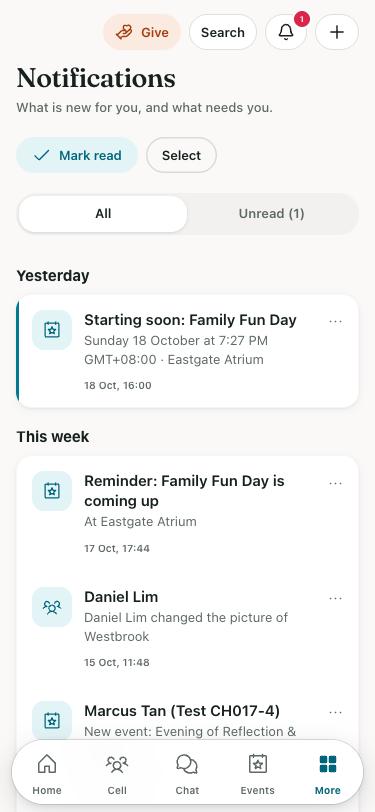
- Look through them. The newest come first, under Today, Yesterday, This week and Earlier. To see only the ones you haven't read, tap Unread.
- Tap one to open it. It takes you to what it's about, and it's marked as read.
- Mark the rest as read. Tap Mark read at the top. Every notification is marked as read, and the number on the bell goes.
- See older ones. Scroll to the bottom and tap Load more.
Clear notifications you don't need
- One at a time. Tap … next to a notification, then Clear. It goes straight away, and can't be brought back.
- Several at once. Tap Select at the top. Tick the ones you want to remove, or tick Select all, then tap Delete and the number, such as Delete (3). Belonging asks "Delete notifications?" Tap Delete and the number again. This can't be undone. Changed your mind? Tap Cancel.
If something looks different
"You're all caught up" You're on Unread, and you've read everything. Tap All to see them all again.
"No notifications yet" Nothing has come in yet. "We'll let you know when something happens."
More, then Notifications, opens settings instead That's where you choose what Belonging alerts you about. See Choose your notifications.
Something you switched off still shows up here Switching an alert off stops the alert, not the notification: it still waits here under the bell.
A notification leads to a page that isn't there What it was about may have been removed. Tap …, then Clear.
Was this helpful?
Still stuck? Ask the Belonging team: open Help in the app (on a phone it’s under More; on a computer, click your name at the bottom of the menu) and choose Ask the app team. The answer comes to your email.