Get started with Belonging
Four things to do in your first few minutes. On a phone, Belonging has a bar along the bottom with Home, Cell, Chat, Events and More (your community may not use all of them). On a computer or a tablet, the same places are in the menu down the left side.
Accept your invitation
Your community sends you an invitation by email or by text message, and it is how you make your account.
- Open the invitation. In the email, tap the button to accept it (it usually says Accept invitation). In a text message, tap the link.
- Check it's for you. The page is headed "Join" and your community's name, with your email address already filled in. If someone shared a link with you instead, type Your name and Email.
- Choose a password. Type it in Password, then again in Confirm password. Use 12 to 72 characters, with a capital letter, a small letter, a number and a symbol.
- Make your account. Tick the box that says you are an adult and agree to the terms (one tick does both), then tap Create account.
- Go in. When the welcome appears, tap Go to Home.
If the invitation doesn't work
"This invitation has expired. Please ask an admin to resend it." Invitations only last a while. Ask the person who invited you to send a new one.
"This invitation has already been used." Your account is already made. Tap Sign in and use the email address and password you chose.
"This invitation was withdrawn. Ask for a new one." Your community cancelled this invitation. Ask them for another.
"Use 12–72 characters with uppercase, lowercase, a number, and a symbol" Your password is too short or too simple. Add a capital letter, a number or a symbol until it is accepted.
"Your account was created, but access remains locked until the email address is verified." Open the email Belonging just sent you and tap its link. The link works for 30 minutes.
No invitation? On the sign-in page, under New here?, you can ask your community to let you join.
Add your photo
A photo and a line about yourself help people put a name to a face.
- Open your profile. On Home, in the Start here card, tap Complete your profile. (The card shows for your first 90 days.) Or, on a phone, tap More, tap your name, then Edit. On a computer, click your name at the bottom of the menu on the left, then Edit profile.
- Add a photo. Tap the camera on your picture and choose a photo. Move and zoom it to fit, then tap Use photo. You'll see "Photo updated".
- Say a little about yourself. Tap Add a short bio, write a line or two, then tap Save.
Put Belonging on your phone
Add Belonging to your phone's home screen, so it opens like an app and can send you notifications.
- Open Belonging on your phone. Use the link from your invitation, or your community's Belonging address, and sign in.
- Add it to your home screen. On an iPhone or iPad, tap Share, then Add to Home Screen. On Android, open your browser's menu and choose the option to add the page to your home screen.
- Open it from the new icon. From now on, start Belonging from that icon. On an iPhone or iPad, notifications only work when you open it this way.
- Turn on notifications. Shortly after you arrive, Belonging asks "Turn on notifications?" Tap Turn on, then choose Allow when your phone asks.
Tapped Not now? Belonging asks again in 30 days. To turn notifications on yourself, tap More, then Notifications, and tap Turn on next to This browser.
Find your group
Your group is where you're known week to week: its meetings, chat and people are all on one page.
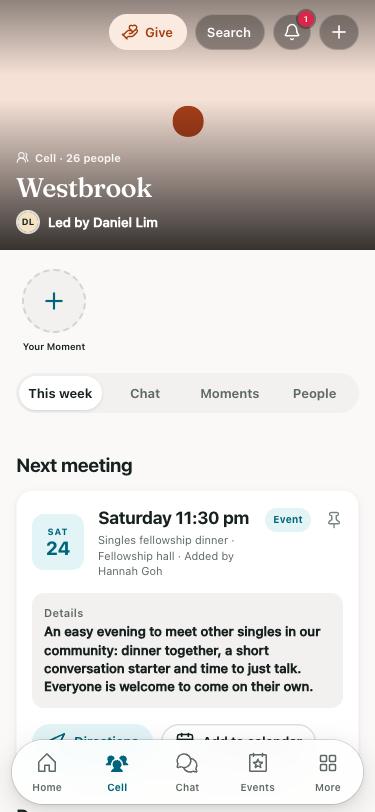
- Open your group. On a phone, tap Cell in the bar at the bottom. On a computer, click My cell in the menu on the left. (If your community calls its groups something else, you'll see that word instead of "cell".)
- Look around. This week shows your group's next meeting, prayer requests and recent posts. People lists
who's in the group. Depending on what your community uses, you'll also see Chat and Moments.
- Not in a group yet? You'll see "You're not in a cell yet". Tap Find a group to look for one, or ask your leader to place you in one. See Find and join a group.
Was this helpful?
Still stuck? Ask the Belonging team: open Help in the app (on a phone it’s under More; on a computer, click your name at the bottom of the menu) and choose Ask the app team. The answer comes to your email.