Choose your notifications
Belonging sends you only a few alerts a day and keeps the rest for one summary message. You can change what reaches you, and when.
- Open Notifications. On a phone, tap More at the bottom right, then Notifications (under Settings).
On a computer, click your name at the bottom of the menu on the left, then the gear (Settings) at the top,
then Notifications (under General).
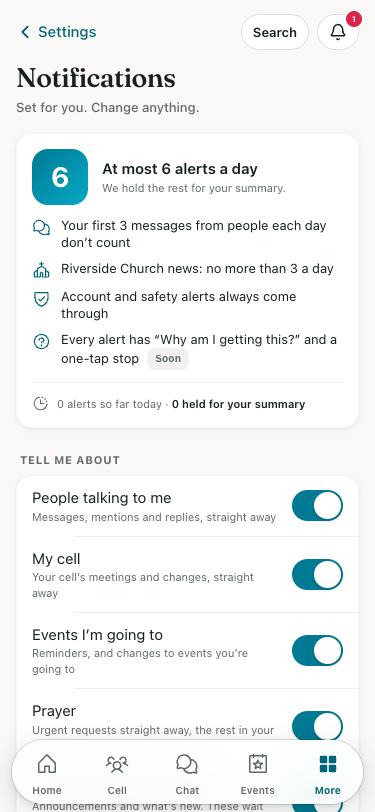
- Choose what to hear about. Under Tell me about, switch off anything you don't want alerts for, such as People talking to me, Events I'm going to, Prayer or News from your community. Switched off, it says "Off: shows in Updates only": it still shows under the bell at the top, without an alert.
- Set quiet hours. Under Quiet hours, choose a time, such as 10 pm–7 am, or Off. "Account and safety alerts always come through, even in quiet hours."
- Choose your summary. Under Summary, choose Daily (every morning at 7:30 am) or Weekly (Sundays at 6 pm). It brings together everything that was held back.
- Choose your emails. Under Emails, choose how you get emails about things like Announcements and Event invitations: Immediate, Daily digest, Weekly digest or No email.
Each change is saved straight away. When you switch something off, you can tap Undo on the message.
Get alerts on this phone or computer
Under Also, next to This browser, tap Turn on. Tap Turn on again, then choose Allow when your browser asks. To stop push alerts on every device, switch off Push alerts.
If something looks different
The card at the top says "At most" so many "alerts a day" That's the most alerts Belonging sends you in a day. The rest wait for your summary. Your first few messages from people each day don't count, and account and safety alerts always come through.
A switch you can't turn off Account and safety covers new sign-ins and safety notices, and "Can't be turned off".
A row marked Soon It isn't ready yet, so you can't change it.
"Notifications are blocked for this site in your browser." Allow notifications for Belonging in your browser's site settings, then come back to Notifications.
"On iPhone and iPad, add this site to your Home Screen first" See Put Belonging on your phone.
"This phone" instead of "This browser" You're using the Belonging app. Turn its notifications on or off in your phone's settings.
"Couldn't save that. Try again in a moment." Your change wasn't saved. Check your connection and try again.
Was this helpful?
Still stuck? Ask the Belonging team: open Help in the app (on a phone it’s under More; on a computer, click your name at the bottom of the menu) and choose Ask the app team. The answer comes to your email.