Manage your privacy and data
Privacy is where you decide what optional use Belonging makes of your data. Your data is where you take a copy of it, ask for it to be corrected, deactivate your account for a while, or delete it.
- Open Privacy. On a phone, tap More at the bottom right, then Privacy (under Me). On a computer, click
your name at the bottom of the menu on the left, then the gear (Settings) at the top, then Privacy.
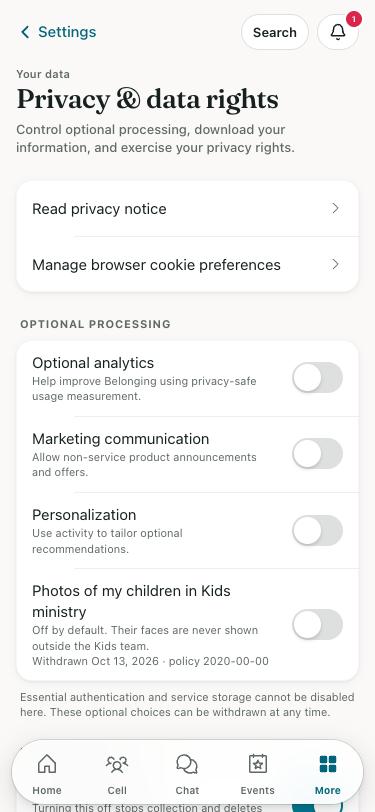
- Choose what's optional. Under Optional processing, switch each one on or off. Each change is saved straight
away.
- Optional analytics, Contact by the church and Photos and video are on until you switch them off. Marketing communication and Personalization are off until you switch them on.
- Switching off Contact by the church stops the church's emails about announcements, events and prayer. Emails about your own account, gifts and requests still come.
- Marketing communication is the church's news: only members who switch it on are sent to its mailing list.
- Switching off Optional analytics stops usage measurement and deletes what was collected about you.
- Show me in the member list: off, other members don't find you in the member list or when they start a chat. Your leaders and the office always can.
- You may see more switches here, depending on what your community uses.
- Open Your data. In Settings, tap Your data (or tap it at the bottom of Privacy).
- Download your data. Tap Download my data, then Continue, and type the code we email you. Tap Get my data, then Readable page (it opens in any browser, to read, print or save as a PDF) or Data file (JSON) (for moving your data to another app). In the app on a phone, it opens in your browser. Each link works once, for 10 minutes.
- Ask for a correction. Tap Correct my data, choose What is wrong?, say What should it say?, then tap Send to the office. For your name, phone or email, you can change it yourself in your profile instead.
- Limit how your data is used. Tap Limit how your data is used, then choose Pause the use of my data (while a correction or an objection is checked) or Object to a use of my data (for example statistics or the church's news). Say what should change and why, then tap Send to the office. The office answers within 30 days.
- Take a break. Tap Deactivate my account and read what happens. Tap Continue, type the code we email you, tick the box with your date, then tap Deactivate my account. You're signed out everywhere and other members can't find you. If you don't sign in again within 30 days, your account is deleted for good, as in the next step; we email you a week before and the day before. Signing in before then turns it back on, and nothing is deleted.
- Delete your account. Tap Delete my account and read what is deleted and what has to be kept. To keep a copy, tap Download my data first before you go on. Tap Continue, type the code we email you, tick I understand this can't be undone, then tap Delete my account now. Your account in this community is deleted straight away, you're signed out everywhere, and we email you a confirmation.
Your requests show under Your requests, with where each one stands and the date we'll answer by. Until the office has acted on a request you can tap Cancel request.
Further down, Who opened your private details lists each time a leader or the office opened something kept hidden, such as your phone number or your giving, with their reason and the date. Your downloads lists the copies you took.
Deleting can't be undone, and nobody can bring the account back. If you're an Owner of the community, hand ownership to someone else first. If some of your records are on hold for a legal reason, the office deletes your account once the hold ends, and until then you can tap Cancel deletion.
If something looks different
"Welcome back" after signing in You had deactivated your account, and signing in turned it back on. Tap Continue, or Deactivate again or Delete now if you'd rather. A recurring gift stopped while you were away stays stopped until you start it again in Giving.
"Could not load privacy settings" Belonging couldn't load the page. Check your connection and open Privacy again.
"That code didn't match, or it has expired. Ask for a new one." Tap Send a new code and use the newest code in your email.
There's no Privacy row in Settings Simple mode hides it. Open More and tap Privacy instead, or switch Simple mode off.
Was this helpful?
Still stuck? Ask the Belonging team: open Help in the app (on a phone it’s under More; on a computer, click your name at the bottom of the menu) and choose Ask the app team. The answer comes to your email.