Sign out
Sign out when you've used Belonging on a shared computer, or before you pass a phone on. It only signs you out of the phone or computer you're using.
-
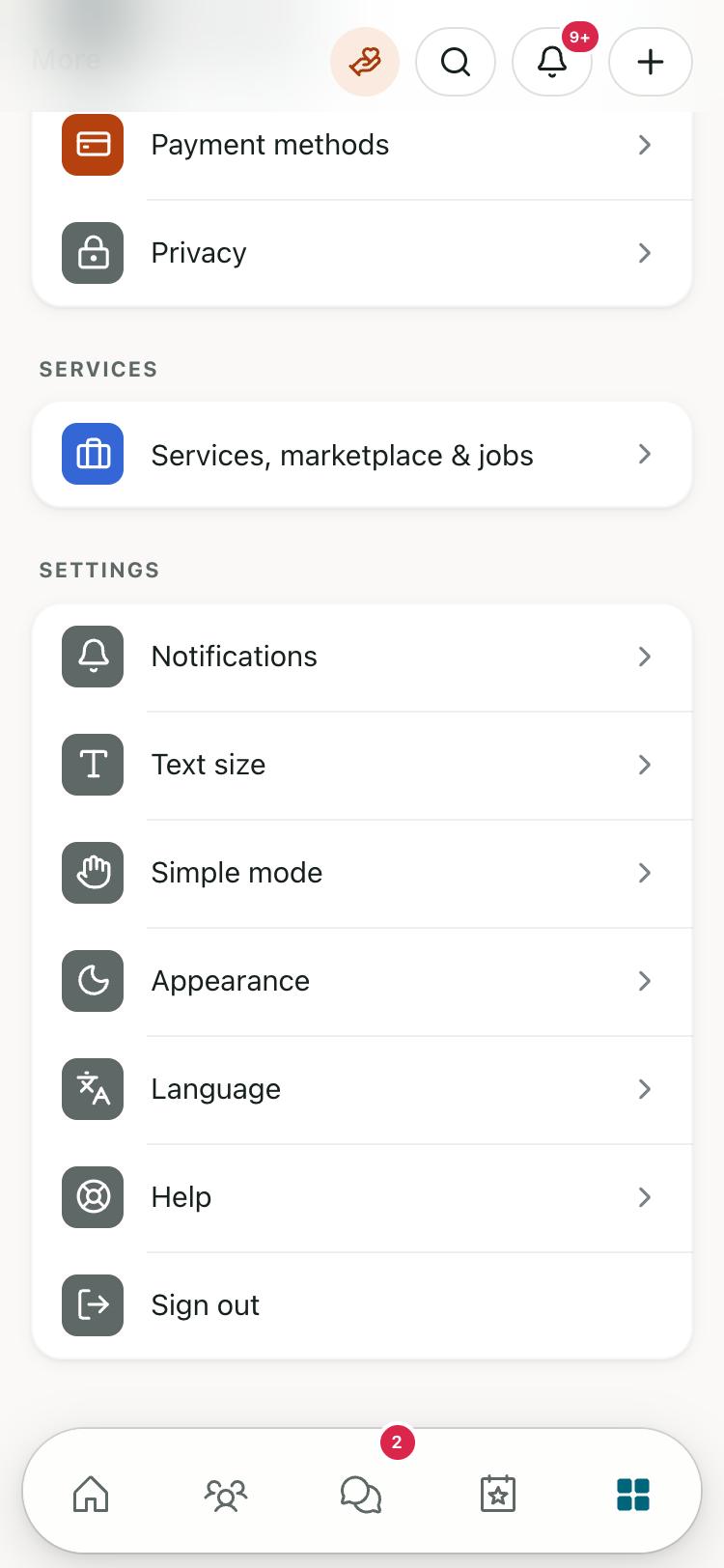
Find Sign out. On a phone, tap More at the bottom right, then Sign out (the last row, under Settings). On a computer, click your name at the bottom of the menu on the left, then Sign out (under Everything else).
-
Confirm. Belonging asks "Sign out?" Tap Sign out. To stay signed in, tap Cancel.
The sign-in page opens, and this phone or computer stops getting Belonging's notifications.
You can also sign out at the bottom of Settings. That signs you out straight away, without asking first.
To sign back in, see Sign in on a new phone.
Was this helpful?
Still stuck? Ask the Belonging team: open Help in the app (on a phone it’s under More; on a computer, click your name at the bottom of the menu) and choose Ask the app team. The answer comes to your email.