Block someone
If someone is bothering you, block them. You won't see their messages or Moments, you can't message each other, and you won't be suggested to each other in Mentorship. They aren't told.
-
Open their profile. On a phone, tap Cell; on a computer, click My cell. Open People and tap their name.
-
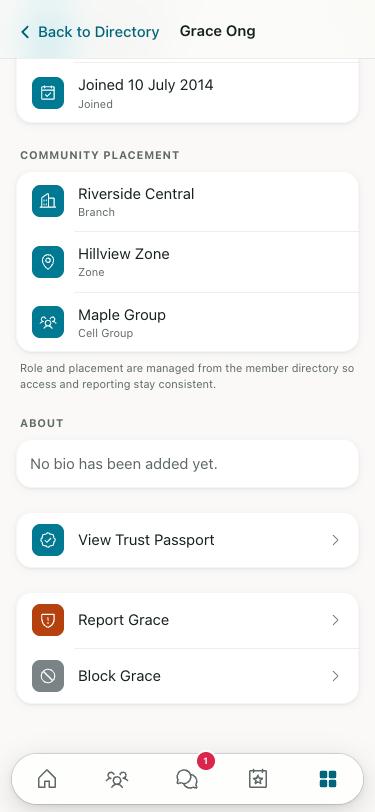
Tap Block and their name. It's at the bottom of their profile.
-
Confirm. Belonging asks "Block" and their name. Tap Block. You'll see "Blocked" and their name, and "They won't be told." Changed your mind? Tap Undo.
You can also block someone from something they sent. In a chat, tap their message, then Report, then Just block and their name. On one of their Moments, tap Report this Moment, then Just block and their name.
Unblock someone
Open Help (on a phone: More, then Help; on a computer: your name at the bottom of the menu, then Help) and tap Your reports. Under People you've blocked, tap Unblock next to their name. Or open their profile and tap Unblock and their name.
If something looks different
There's no Block on the profile It's your own profile.
"Block user" in a chat's menu That blocks them in that one chat only, and they won't be listed under People you've blocked. To block them everywhere, use their profile or Just block.
"We couldn't block them. Try again." or "Couldn't change that. Nothing changed." They weren't blocked. Check your connection and try again.
You want to tell someone what happened, too Report them instead, and switch on Also block. See Report a message.
Was this helpful?
Still stuck? Ask the Belonging team: open Help in the app (on a phone it’s under More; on a computer, click your name at the bottom of the menu) and choose Ask the app team. The answer comes to your email.