Set up your groups on the Tree
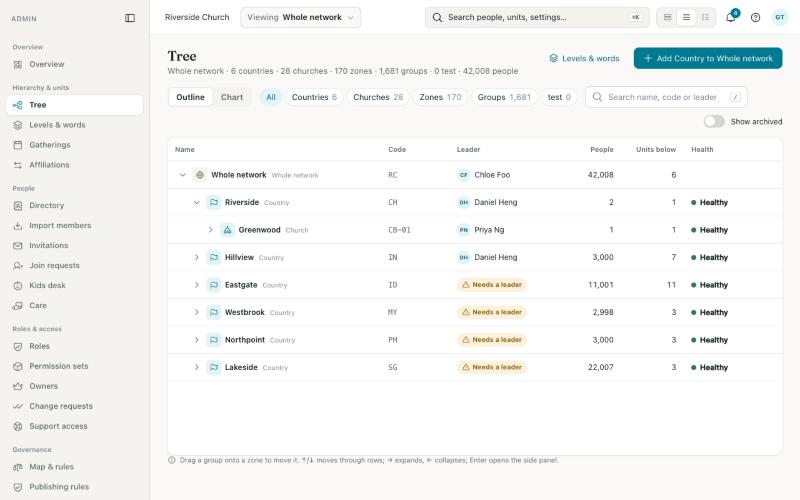
The Tree is your community's shape: every unit, from the top level down to each group, with its leader and how many people are in it. You build it here. The Tree is an editor, so use a computer.
Open it from the admin menu: under Hierarchy & units, choose Tree. Each unit's actions are in the … menu on its row, or under Actions in the panel that opens when you select the row.
Add a group
- Choose where it goes. Select the unit it belongs under, then the button Add at the top (it reads, for
example, Add Cell group to Riverside). Or open that unit's … menu and choose its Add option, which
names the level, such as "Add Cell group".
- Name it. Fill in the name. Code is optional and must be unique across your community. For a group, choose the day it Meets.
- Save. Select Save and choose leader, then pick its leader, or close the box to do that later. The new group shows Needs a leader until someone is assigned.
Move a unit
- Choose Move. In the unit's … menu, choose Move….
- Pick where it goes. Search for the unit to move it under and select it. Places you can't use say why, such as "outside your area".
- Confirm. Select Move. Everyone placed in it moves with it, and its history stays with it.
Rename a unit
Choose Rename, change the Name or Code, and select Save.
Merge two units
Merge into… joins a unit into another at the same level. Its people and the units below it move across, and then it's removed. Its history is kept. Pick the unit to merge into, check the Merge preview, and select Merge. Merging asks for the code from your authenticator app.
Archive or delete a unit
- Archive… puts a unit aside without losing anything. Add a Reason (kept in the audit log) if you like, then select Archive. Anyone placed in it stays in the directory without that placement. To see archived units again, switch on Show archived, then choose Restore from the unit's menu.
- Delete… is only for an empty unit: nothing below it, and nobody placed in it. Select Delete to confirm.
Adding, moving, renaming and archiving show a message with Undo, in case you picked the wrong unit. Merging and deleting can't be undone.
If something looks different
"Move or merge them first." You can't delete a unit while other units sit below it. Move them somewhere else, or merge this unit instead.
"Move them, or merge this unit instead." People are still placed in the unit you want to delete.
"Resolve the approval requests sent to it first" Requests waiting for this unit's approval must be decided before you archive or delete it. Check Approvals.
"Couldn’t save that change. Try again." The change didn't go through. Try it again.
To name your levels, rather than the units in them, see Name your community's levels. To choose a group's leader, see Make someone a leader.
Was this helpful?
Still stuck? Write to the Belonging teamOpen Help and choose Ask the app team.