Switch modules on or off
Modules are the parts of Belonging your community can use, like Events & RSVPs or Giving & Campaigns. Turn on what you need now and add more later. A module that's off disappears for everyone, including its pages in the admin menu.
-
Open Features. In the admin menu, under Settings, choose Community profile, then Features under More settings.
-
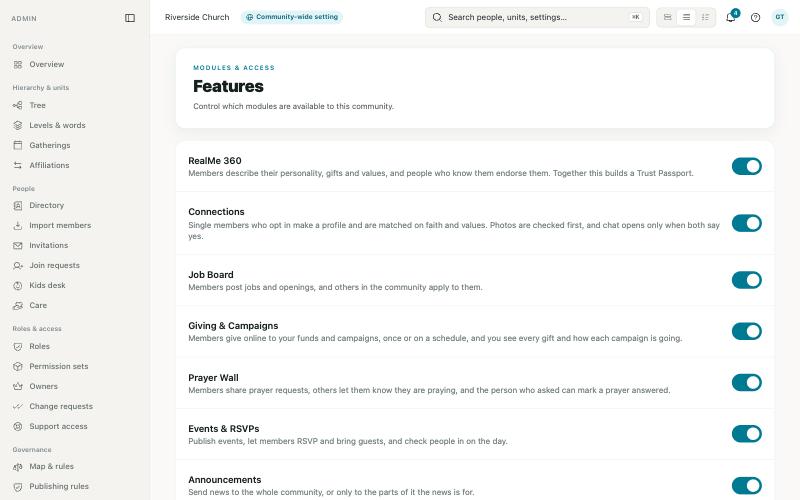
Find the module. Each row shows the module's name, what it does, and how much your community uses it now, such as "86 live listings". A module that's off says since when.
-
Flip its switch. Turning a module on is saved straight away. Turning one off first shows what members will lose; choose Turn off to go ahead, or Keep it on.
Changed your mind? Choose Undo in the message that appears after each change.
Switching a module off hides it, but doesn't delete what's in it. Each change is recorded in the audit log.
Some modules start off until you choose them: those you didn't pick when you created your community, and those that need some thought first, such as Kids check-in, which holds children's data.
Members can also hide modules they don't use, just for themselves, under My modules in the member app.
If something looks different
A module you expected isn't in the list. Some modules are only offered to some kinds of community. Prayer Wall and Connections, for example, are only for faith communities.
The switches for measuring how members use the app aren't here. They're on Member behaviour, under Insights.
"Couldn't change Prayer Wall. Try again." The change didn't save. Check your connection and flip the switch again.
A page has gone from the admin menu. Its module is off. Switch the module back on in Features and the page returns.
Was this helpful?
Still stuck? Write to the Belonging teamOpen Help and choose Ask the app team.