Edit your public site
This is for communities that use Public Website. If you can’t find it in your app, your community hasn’t switched it on.
Your public site is the page anyone can visit to find out about your community: what you're about, when and where you meet, and how to get in touch. Nobody outside can see it until you publish it.
-
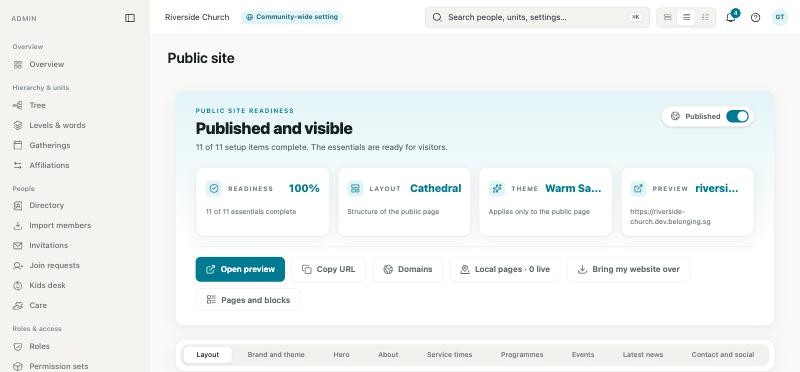
Open Public site. In the admin menu, under Website, choose Public site.
-
Choose a section. The tabs along the page take you to one section at a time: Layout, Brand and theme, Hero, About, Service times, Programmes, Events, Latest news and Contact and social.
-
Make your changes. Your edits save by themselves a moment after you stop typing. The bar at the bottom shows Saving..., then All saved. You can also select Save at any time.
-
Preview it. Select Open preview to see the page as visitors will, in a new tab. It works while the site is still a draft.
-
Publish. When you're happy, switch the toggle at the top from Draft to Published. The heading changes to Published and visible.
While the site is published, every saved edit goes live straight away. To take it down, switch the toggle back to Draft. Visitors then can't open it.
The Setup checklist beside the editor shows what's still missing, and Readiness at the top shows how far along you are.
Bring your existing website over
If you already have a website, select Bring my website over. Belonging reads your current site, shows what it found, and lets you choose a look before anything changes.
If something looks different
"Hero title is required." The first slide in Hero needs a Slide title. Open Hero, then the first slide, and fill it in. Until you do, your edits aren't saved: the bar stays on Unsaved changes.
"Service time 2 needs a day, time, and location." Each service time needs all three. Fill in the missing one, or remove that service time.
"Couldn't save public site" Select Retry on the message, or Save again.
The page says "Module unavailable". The Public Website module is off. Switch it on in Features under Settings.
Was this helpful?
Still stuck? Write to the Belonging teamOpen Help and choose Ask the app team.