Name your community's levels
Every community is a tree of levels, from the whole community down to each group. A school might call its levels campus, year and class; a club might say region and team. The words you choose here are used everywhere: in the admin portal, the member app, notifications and your public site.
-
Open Levels & words. In the admin menu, under Hierarchy & units, choose Levels & words. Use a computer: this page is an editor.
-
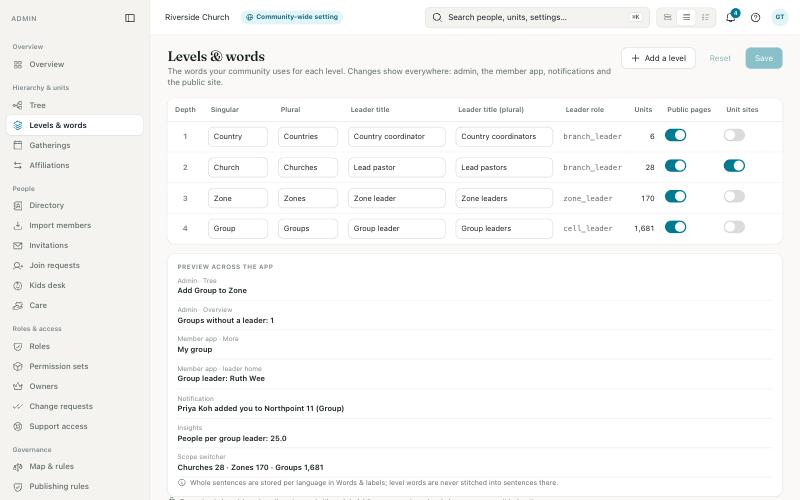
Type the words for a level. Each row is one level, numbered by Depth from the top. Fill in Singular and Plural (for example "Class" and "Classes"), then Leader title and Leader title (plural) (for example "Class teacher"). Leave a box empty to keep the word shown in grey.
-
Check the preview. Preview across the app shows your words in real sentences as you type, such as the Tree, a leader's home and a notification.
-
Save. Select Save. The change applies at once. To take it back, select Undo on the message that appears. Reset clears anything you haven't saved yet.
You can also name what your members are called. In the admin menu, under Settings, choose Community profile. In What your community calls its levels, fill in What members are called and select Save names.
Adding or removing a level
Renaming is low risk. Adding or removing a level changes every unit below it, so think it through first.
- To add one, select Add a level, choose Where it goes, name it, and select Add level. Every level below it moves down one.
- To remove a level you added, select the bin on its row and then Remove level. This can't be undone. Your community's default levels can be renamed but not removed.
If something looks different
"Two levels are called … Give each level its own name before saving." Each level needs its own name, or people couldn't tell them apart.
The Leader role can't be changed. "One of your community's default levels: its leader role is fixed." You can choose the leader role only for a level you added. Changing it asks you to confirm, because every leader at that level gets the new access when you save.
"Continue on computer" On a phone this page shows a summary only. Select Email me the link to open it on a computer.
Was this helpful?
Still stuck? Write to the Belonging teamOpen Help and choose Ask the app team.