Import your member list
If you already keep a list of your people, import it instead of typing everyone in. Nothing is added until the last step, and existing members are never overwritten. An import adds people, not sign-ins: they join through an invitation, which you can choose to send at the end.
- Open Import members. In the admin menu, under People, choose Import members. Select Download
template if you want a file with the right columns already in it.
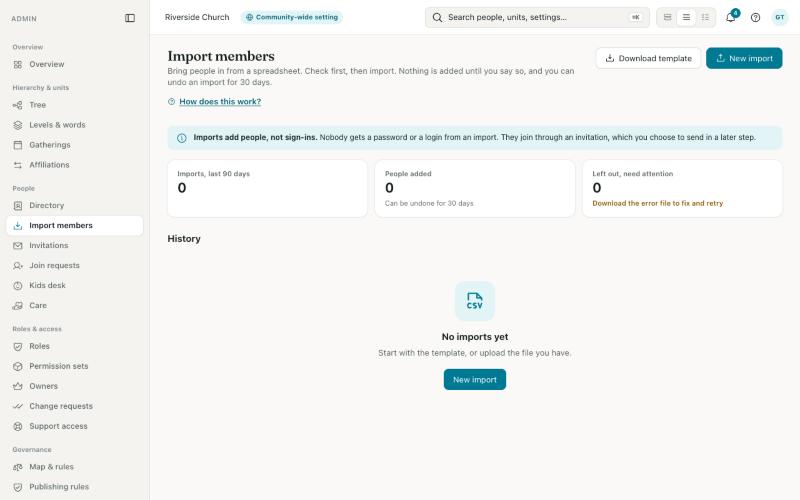
- Start a new import. Select New import.
- Upload your file. Drop a CSV file on the page, or select Choose file. Each row is one person, with a name and an email address or mobile number. Up to 5,000 rows and 10 MB.
- Match your columns. On Map columns, check where each of your columns goes, such as Full name, Email or Group (code or name). Set any column you don't want to Don’t import. Then select Check the data.
- Read the dry run. Check shows what would happen: who Will be added, who is Skipped as duplicates, who Need fixing and who is Refused. Select Fix on a row to correct it, then Save and re-check, or Leave this row out. Select Continue when you're happy.
- Choose consent and options. On Consent & options, choose how newsletters are handled. Tick Send invitations when the import finishes if you want everyone invited straight away. Choose what happens If a group isn’t found. Then select Review and import.
- Import. Check the summary, tick These people gave us their details, and select the import button (for example Import 120 people). Adding more than 100 people asks for your authenticator code.
When it finishes you'll see Import finished. From there, Open in Directory shows the people you added, and Send invitations invites them if you didn't choose that earlier.
Undo an import
You can take an import back for 30 days. On Import members, find it in the list and select Undo, then Undo again to confirm. It removes the people that import added, except anyone who has signed in or been edited since. Undoing also asks for your authenticator code.
If something looks different
"Excel files cannot be read yet. Save the sheet as CSV and upload that." Save your spreadsheet as a CSV file and upload that instead.
"Choose a column for email or mobile." Every person needs a way to be reached. Set one of your columns to Email or Mobile.
"Role columns never grant admin access: rows asking for an admin role are refused in the next step." Imports can't make anyone an organiser. Give that role afterwards, one person at a time.
People under 18 Imports can't add children yet: anyone whose date of birth makes them under 18 is refused in the check step, with the reason on their row. Leave them out of the file, and add them later with their family.
"Confirm it's you" Large imports and undos ask for the code from your authenticator app. See Set up two-factor authentication.
Was this helpful?
Still stuck? Write to the Belonging teamOpen Help and choose Ask the app team.