Start a chat with someone
This is for communities that use Direct Messages. If you can’t find it in your app, your community hasn’t switched it on.
Chats are private conversations. You can message people you share a group, ministry or small event with straight away.
-
Open Chats. On a phone, tap Chat in the bar at the bottom. On a computer, click Chats in the menu on the left.
-
Tap New chat.
-
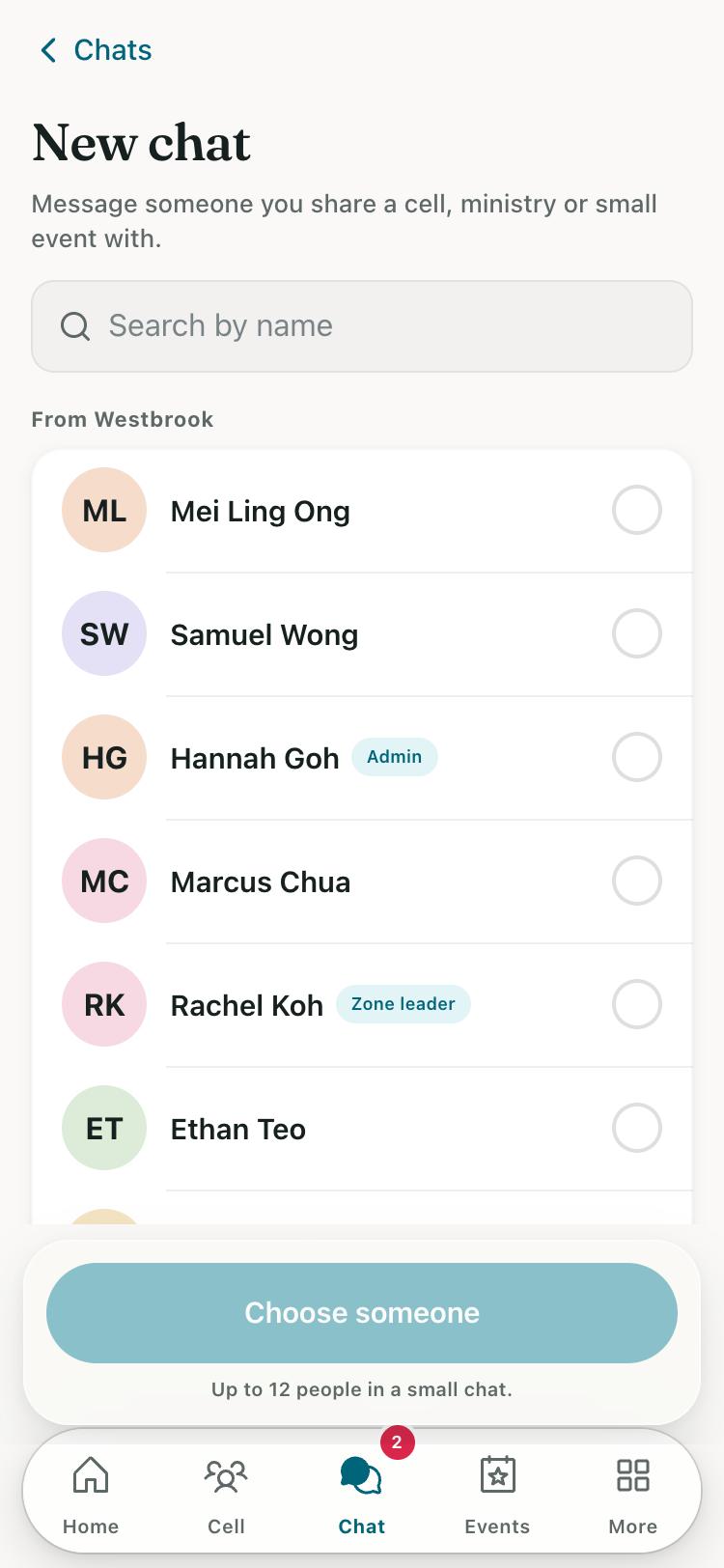
Find the person. Type in Search by name, or pick from the list. People from your own group are listed first.
-
Tap their name. To start a group chat, tap more names (up to 12), and type a name for it in Name this chat.
-
Tap Start chat. For a group, the button says "Start group chat" and the number of people. Then type your message and send it.
You can also message someone from your group's page: open People and tap Message next to their name.
If something looks different
"Arrives as a message request" You don't share a group, ministry or small event with this person, so they get a request first. Write your first message in the Write a first message box, then tap Start chat. You'll see "Sent as a message request." They can accept it, block you or report it.
"Not available" under a name You can't message this person. Sometimes the line gives the reason instead.
"No one found" Nobody matches that name among the people you can message. Check the spelling.
"Messaging isn't switched on for your community yet." Your community doesn't use chats in Belonging.
Was this helpful?
Still stuck? Ask the Belonging team: open Help in the app (on a phone it’s under More; on a computer, click your name at the bottom of the menu) and choose Ask the app team. The answer comes to your email.