Find and join a group
This is for communities that use Spaces. If you can’t find it in your app, your community hasn’t switched it on.
Besides your own group, your community may have teams, ministries and interest groups you can join. You find them all in Groups.
- Open Groups. On a phone, tap More, then Groups (under Community). On a computer, click Groups in
the menu on the left.
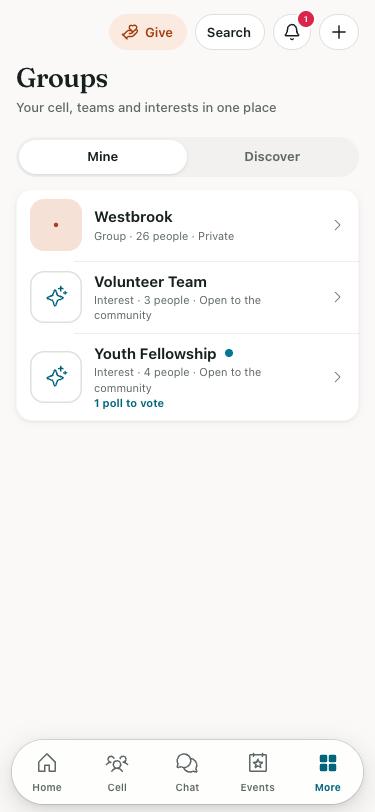
- Tap Discover. Mine lists the groups you're already in; Discover lists the ones you can join. Type in Search groups, or tap Ministries or Interests to narrow the list.
- Join. Each group says how to get in:
- "Anyone eligible can join": tap Join. You'll see "Joined" and the group's name, and it moves to Mine.
- The leader's name and "approves requests": tap Ask to join, add a short message if you like, then tap Send request.
- "Ask a member for an invite": the group is Invite only, so ask someone in it to invite you.
- Open your new group. Tap it in Mine to see its posts, chat, members and events. See Post in your group.
While you wait for a leader to say yes, the group is listed under Waiting for approval in Mine. Tap Withdraw to take your request back. Changed your mind after joining? See Leave a group.
If something looks different
Your own group isn't in Discover Groups that are invite only, and your community's smallest groups (cells, or whatever yours calls them), aren't listed. Their leaders add you or share a link. If you have no group yet, ask your leader to place you in one.
"You have seen everything" You're already in every group you can join. To start a new one, tap Suggest a new group at the bottom of Discover.
"We could not join. Please try again." Something went wrong on the way. Check your connection and tap Join again.
Was this helpful?
Still stuck? Ask the Belonging team: open Help in the app (on a phone it’s under More; on a computer, click your name at the bottom of the menu) and choose Ask the app team. The answer comes to your email.