Mute a group or chat
This is for communities that use Spaces. If you can’t find it in your app, your community hasn’t switched it on.
Muting keeps you in a group or chat but stops it alerting you. Everything is still there when you open it.
Mute a group
-
Open the group. Go to Groups (on a phone: More, then Groups; on a computer: Groups in the menu on the left) and tap the group.
-
Tap About.
-
Switch on Mute notifications. You'll see "Notifications muted for this group". You still see new posts when you open the group.
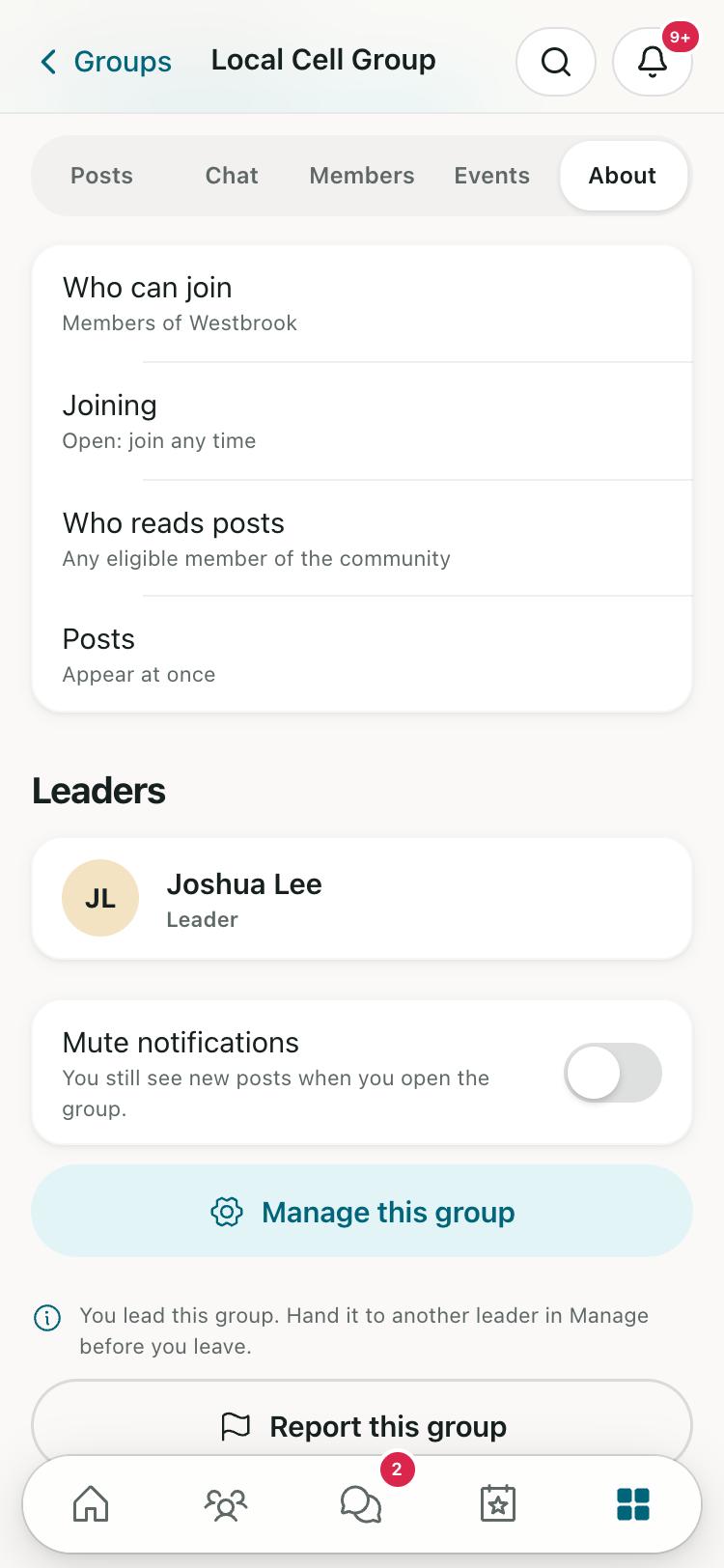
To hear from it again, switch Mute notifications off. You'll see "Notifications back on".
Mute a chat
If your community uses chats, you can mute any of them, including your group's own chat.
- Open the chat. On a phone, tap Chat; on a computer, click Chats. Then open the conversation.
- Tap the bell. It's at the top right of the chat. A line through the bell means the chat is muted. Tap it again to unmute.
You can also mute from the list of chats: on a phone, press and hold the chat; on a computer, point at it and click the three dots. Then choose Mute. A muted chat shows a bell with a line through it.
If something looks different
There's no About tab or Mute switch for your own group Your own group's page doesn't have this switch. Mute its chat instead, as above.
"That did not work. Please try again." after switching Mute notifications The change didn't save, so the switch went back. Check your connection and try again.
Was this helpful?
Still stuck? Ask the Belonging team: open Help in the app (on a phone it’s under More; on a computer, click your name at the bottom of the menu) and choose Ask the app team. The answer comes to your email.