Edit or withdraw your testimony
This is for communities that use Testimonies. If you can’t find it in your app, your community hasn’t switched it on.
You can change or remove a testimony you've shared at any time, even while a leader is still reading it. To open Testimonies on a phone, tap More, then Testimonies (under Community). On a computer, click your name at the bottom of the menu on the left, then Testimonies (under Community).
Edit it
-
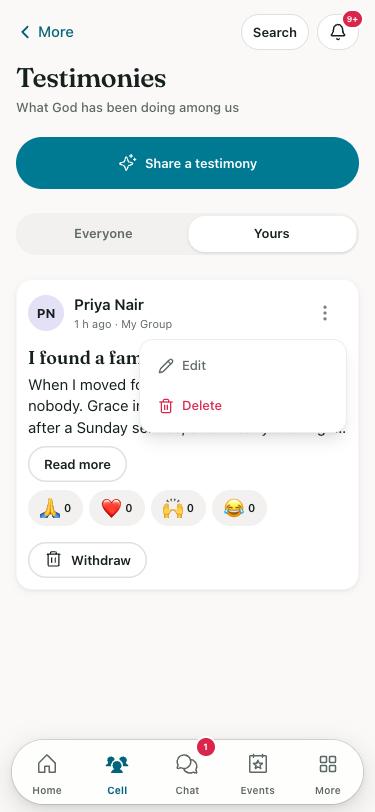
Find your testimony. In Testimonies, tap Yours.
-
Tap the three dots at the top of your testimony, then Edit.
-
Change it. Change the Title or the Text. "If this needed approval before, your changes will be reviewed again before others see them."
-
Tap Save.
Withdraw it
- Find your testimony. In Testimonies, tap Yours.
- Tap Withdraw. It's under your testimony.
- Confirm. Belonging asks "Withdraw this testimony?" and says "It will be removed for everyone. This can't be undone." Tap Withdraw. You'll see "Testimony withdrawn".
You can also tap the three dots, then Delete. Belonging asks "Delete this?" and the testimony is removed in the same way.
If something looks different
"Hidden until it's approved again" A leader has hidden your testimony, and the note says why. Edit it as above, and it's read again before it's shown.
"Couldn't save your changes. Please try again." Your change wasn't saved. Check your connection and tap Save again.
There's no Edit on a testimony It isn't yours. You can only change your own.
Was this helpful?
Still stuck? Ask the Belonging team: open Help in the app (on a phone it’s under More; on a computer, click your name at the bottom of the menu) and choose Ask the app team. The answer comes to your email.