Mark a listing sold, or edit or remove it
This is for communities that use Marketplace. If you can’t find it in your app, your community hasn’t switched it on.
Your listings are under My listings on the Marketplace. (On one of your own listings, tap Manage my listings.) Under Listings, each one shows its price, how many views it has had, and whether it's Live, Waiting for the campus team or Sold.
Mark it sold or given away
-
Tap ⋯ next to the listing.
-
Tap Mark as sold or given away. It leaves the Marketplace and stays in your list as Sold. It doesn't need checking again.
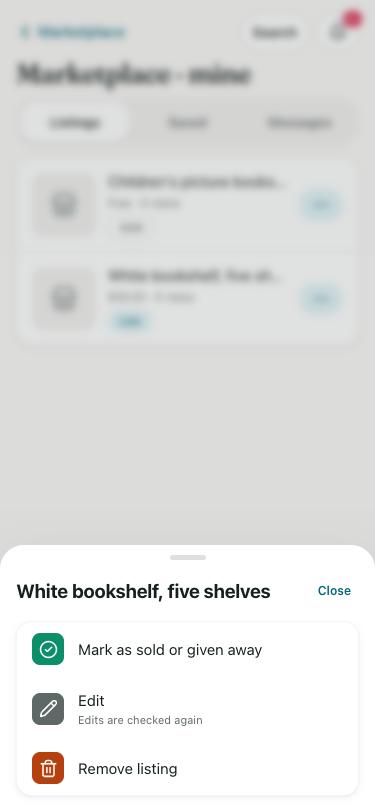
Changed your mind? Tap ⋯, then List it again.
Edit it
- Tap ⋯ next to the listing, then Edit.
- Make your changes. The form is the same one you listed it with.
- Tap Save changes.
"Edits are checked again": if your listing needed a check when you posted it, your changes need one too. Until then it shows Waiting for the campus team.
Remove it
- Tap ⋯ next to the listing, then Remove listing.
- Confirm. Belonging asks "Remove this listing?" Tap Remove. You'll see "Listing removed".
Removing can't be undone. The listing goes for everyone, and so do its conversations in Messages.
If something looks different
"Failed to update status." It wasn't marked sold. Check your connection and try again.
"Couldn’t remove the listing. Try again." It's still listed. Check your connection and try again.
"Nothing listed" You haven't listed anything yet. See List something on the Marketplace.
Was this helpful?
Still stuck? Ask the Belonging team: open Help in the app (on a phone it’s under More; on a computer, click your name at the bottom of the menu) and choose Ask the app team. The answer comes to your email.