Find and apply for a job
This is for communities that use Job Board. If you can’t find it in your app, your community hasn’t switched it on.
Jobs lists the work people in your community have shared: full-time and part-time roles, contracts, internships, volunteer slots and odd jobs. You apply with a short message to the person who posted it, and a PDF if you like.
-
Open Jobs. On a phone, tap More, then Jobs (under Services). On a computer, click your name at the bottom of the menu on the left, then Jobs (under Services). You start on Open.
-
Narrow it down, if you like. Search for a role, company, place or skill (on a phone, tap the magnifying glass first). The sort menu starts on Newest first; you can also choose Closing soon or Most applied. To see one kind of work, tap Filters, choose a type such as Part time or Volunteer, and tap Apply.
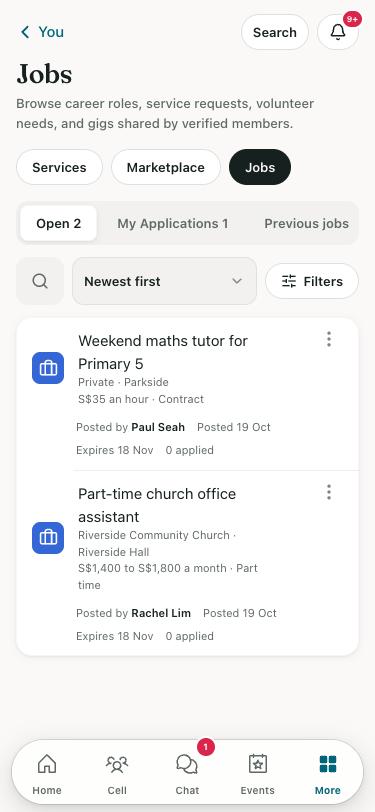
-
Open a job. Tap it to see the company, the pay, where it is, who posted it and the full description. If the person who posted it added an email address, Email Contact opens your email app.
-
Tap Apply. It's at the bottom of the job.
-
Write your message. Under Message to Poster / Cover Letter, say who you are and why you'd be good for it. Write at least 20 characters.
-
Attach a PDF, if you like. Under Attach Resume / Qualification (Optional PDF, max 5MB), choose your CV or a certificate.
-
Tap Submit Application. My Applications opens, with your application on it.
The person who posted the job gets a notification that you applied. To see how it's going, see Check or withdraw a job application.
Who sees what you send
The person who posted the job sees your name, your message and your PDF, and may also see your email address. Your community's admins can open applications too. Your PDF is stored as a file that anyone with its link can open, so leave out anything you don't want shared, such as your home address or ID numbers.
If something looks different
"Please write a brief message/cover letter (at least 20 characters)" Your message is too short. Add a sentence or two.
"File size exceeds 5MB limit. Please upload a PDF under 5MB." or "Only PDF files (.pdf) are supported." Choose a PDF under 5 MB, or apply without one.
Verify to Apply →, or "Verified Members Gate" Applying is for members with a member profile. Finish joining your community first.
There's no Apply button It's your own job, it has expired ("This listing has expired"), it's still waiting to be approved ("Awaiting approval"), or the person who posted it has filled it ("This position is closed").
A job has gone from Open Jobs you've applied for move to My Applications. Jobs you posted are under Posted. Expired jobs are under Previous jobs.
"Reset filters" Something is narrowing the list. Tap Reset filters to see every open job.
You don't see Jobs Jobs is hidden for members under 16, and a community can switch it off.
Was this helpful?
Still stuck? Ask the Belonging team: open Help in the app (on a phone it’s under More; on a computer, click your name at the bottom of the menu) and choose Ask the app team. The answer comes to your email.