List something on the Marketplace
This is for communities that use Marketplace. If you can’t find it in your app, your community hasn’t switched it on.
List something you'd like to give away or sell. You need at least one photo.
-
Tap List something. Open the Marketplace (on a phone, More, then Marketplace) and tap List something.
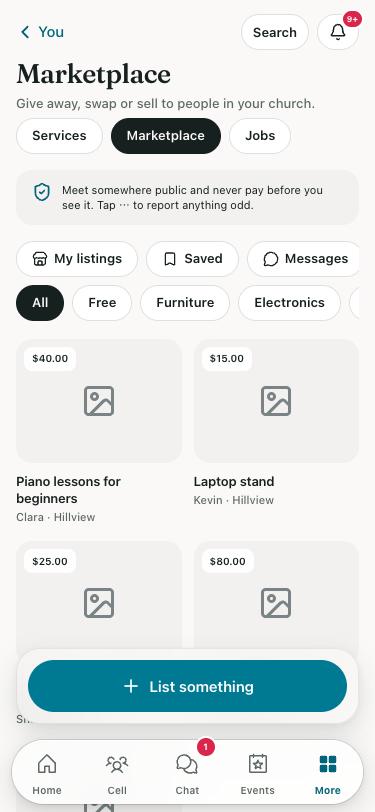
-
Add photos. Under Photos (up to 4), tap the camera tile and choose a photo. You can add up to four. The first one is the photo people see in the list.
-
Say what it is. Under What is it?, give it a short name.
-
Choose a category. Tap one under Category.
-
Set a price, or give it away. Key in the amount under Price ($). Giving it away? Switch on Free to a good home instead (or tap Free at the start of the categories).
-
Choose its condition. Under Condition, tap New, Like new, Good or Fair.
-
Describe it. Under Description, say anything people should know, like its size or age. Leave out your phone number, address and links: people message you in the app.
-
Choose who gets it. Under Who gets this, tap your own group, a wider part of your community, or Whole community. Each choice says You can post (it goes out straight away), or how many approvals it needs and who checks first.
-
Post it. Tap Post. If someone checks it first, the button says Send to and their name to check.
My listings opens and says "Posted. It’s live now." or "Posted for checking. It appears once the campus team approves it." Changed your mind? Tap Undo straight away.
Your listing shows your campus, never your address. You can agree a place to meet when you chat.
If something looks different
"Add at least one photo so people can see it." Every listing needs a photo.
"Add a price, or switch on “Free to a good home”." Key in a price, such as 20 or 12.50, or switch on Free to a good home.
"Please take out phone numbers and links. People can message you in the app." Your description has a link, or a long run of digits like a phone number. Take it out and try again.
"One moment, we’re still working out who can see this. Try again." Who gets this hadn't finished loading. Wait a moment and tap Post again.
"There's no audience you can choose for this. Ask a community admin if that seems wrong." There's nobody you can share listings with yet. Ask one of your community's admins.
"The campus team checks new posts" This note is on every listing form. If the choice you picked says You can post, your listing goes live straight away.
You're a business owner and the button says "Send to ... to check" Your listing still goes live as soon as you post it, and Belonging says "Posted. It’s live now."
Was this helpful?
Still stuck? Ask the Belonging team: open Help in the app (on a phone it’s under More; on a computer, click your name at the bottom of the menu) and choose Ask the app team. The answer comes to your email.