Find something on the Marketplace
This is for communities that use Marketplace. If you can’t find it in your app, your community hasn’t switched it on.
The Marketplace lists what people in your community are giving away, swapping or selling, newest first.
- Open the Marketplace. On a phone, tap More, then Marketplace (under Community). On a computer, click
your name at the bottom of the menu on the left, then Marketplace (under Community).
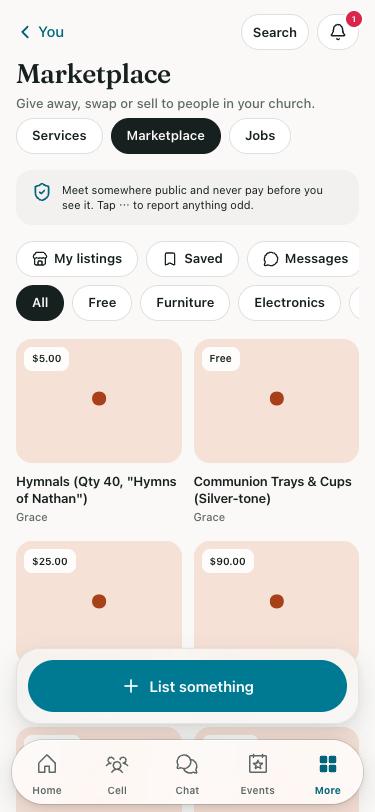
- Narrow it down. Tap Free for things being given away, or a category: Furniture, Electronics, Books, Clothing, Kids & Family, Services or Other. Tap All to see everything again.
- Open a listing. Tap it to see its photo, price and condition, the seller's name and campus, and the description.
- Save it for later. Tap Save at the top. It changes to Saved; tap it again to take it off your list.
To find what you saved, tap Saved on the Marketplace, or tap My listings, then Saved. "Saving never tells anyone."
When you're ready to ask about something, see Message a seller.
If something looks different
There's no search box The Marketplace has no search or sort. Use Free and the categories.
"No matching listings" There's nothing in that category right now. Tap All.
"Nothing here yet" No one has listed anything yet. See List something on the Marketplace.
"This listing isn't available" It has been removed, or it's no longer shared with you.
Something you saw earlier has gone Once a seller marks something sold or given away, it leaves the Marketplace.
Was this helpful?
Still stuck? Ask the Belonging team: open Help in the app (on a phone it’s under More; on a computer, click your name at the bottom of the menu) and choose Ask the app team. The answer comes to your email.