See all your cards in Wallet
Wallet keeps the cards you show at the door together: your member card, your Kids parent card if your children use the kids' rooms, and passes for events you're going to.
-
Open your member card. On a phone, tap More at the bottom right, then Card (next to your name at the top). On a computer, click your name at the bottom of the menu on the left, then All features, then Card.
-
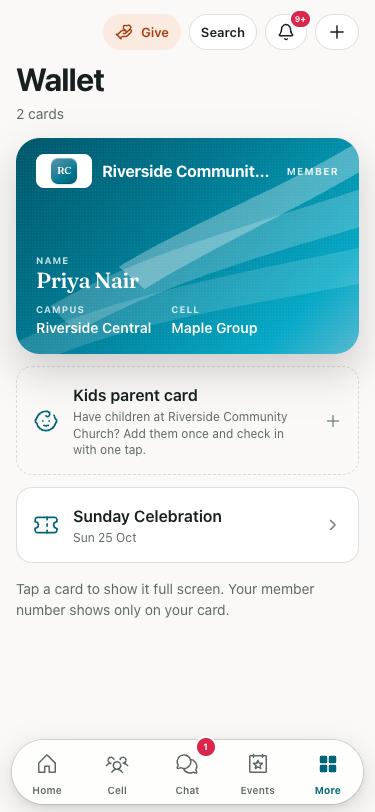
Tap All cards. Wallet opens, and says how many cards you have. (On an event pass, you can also tap Wallet.)
-
Tap the card you need.
- Your member card opens full screen, with its QR code. See Show my member card.
- Your Kids parent card shows your children and, under Next, the next kids' session. It opens Kids check-in. See Check in your children.
- An event pass shows the event's name and date. It opens the pass, with the QR code to show at the door. See Check in with your attendance pass.
Your member number shows only on your member card.
If something looks different
"No tickets yet" "When you RSVP to an event, its pass appears here." Only events that check people in with a pass give you one. A pass leaves Wallet once you've been checked in, or once its scanning has closed.
"Kids parent card" with "Add them once and check in with one tap." You haven't added your children yet. Tap it to add them. See Add your children.
No Kids parent card at all Your community doesn't use Kids check-in, or Kids check-in isn't open to you.
"Wallet passes are coming soon. Your QR code works as it is." You tapped Add to phone wallet on your member card. Cards can't go into your phone's own wallet app yet: open them in Belonging.
Was this helpful?
Still stuck? Ask the Belonging team: open Help in the app (on a phone it’s under More; on a computer, click your name at the bottom of the menu) and choose Ask the app team. The answer comes to your email.