Change the language
Belonging can show its buttons and menus in your own language. The change shows straight away.
-
Open Language. On a phone, tap More at the bottom right, then Language (under Settings). On a computer, click your name at the bottom of the menu on the left, then the gear (Settings) at the top, then Language (under General).
-
Choose your language. Each one is written in its own words, such as 中文, தமிழ் or Bahasa Indonesia. A tick shows the one you're using.
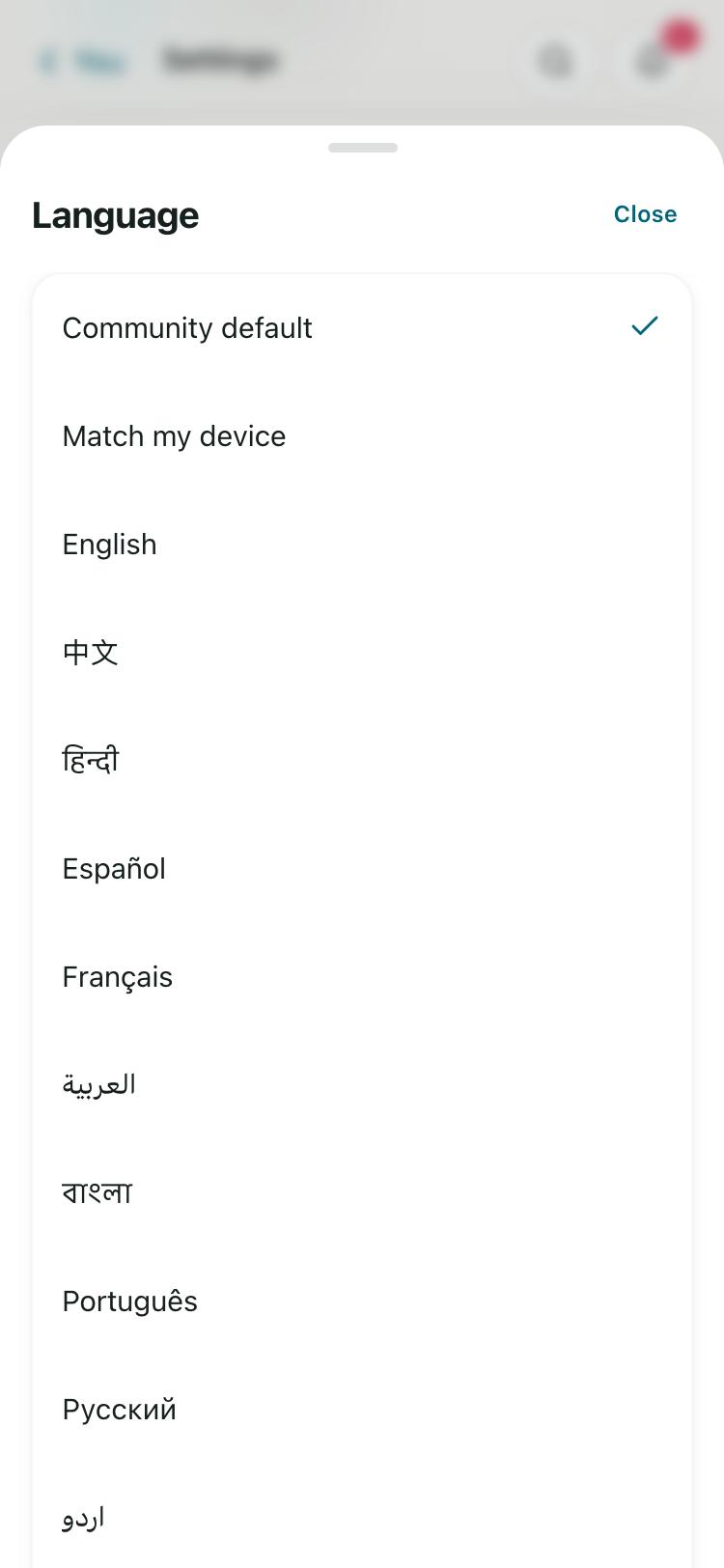
Two choices at the top of the list don't name a language. Community default uses the language your community has chosen. Match my device uses your phone's or computer's language.
Belonging saves your language with your account, so it's the same when you sign in on another phone or computer. This guide is in English.
If something looks different
The screen now reads from right to left That's how العربية (Arabic) and اردو (Urdu) are read. Choose another language to go back.
The language changed back Belonging couldn't save your choice, so it put your old language back. Check your connection and choose again.
Was this helpful?
Still stuck? Ask the Belonging team: open Help in the app (on a phone it’s under More; on a computer, click your name at the bottom of the menu) and choose Ask the app team. The answer comes to your email.