Use dark mode
Dark mode is easier on the eyes at night.
-
Open Appearance. On a phone, tap More at the bottom right, then Appearance (under Settings). On a computer, click your name at the bottom of the menu on the left, then the gear (Settings) at the top. Appearance is near the top.
-
Choose Light, Dark or Match device. Match device follows your phone's or computer's own setting, so Belonging goes dark when your device does. It says "Following your device."
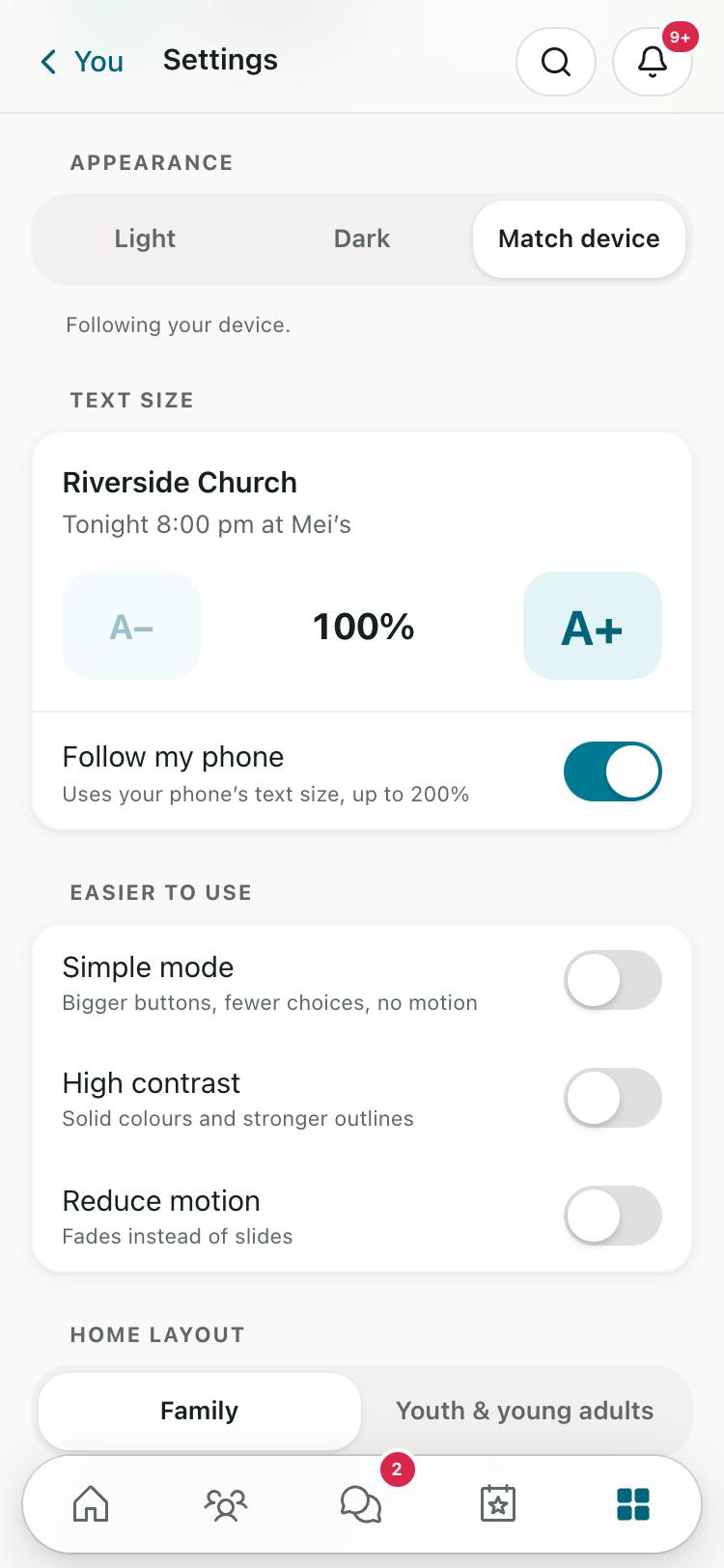
It changes straight away. To undo, choose Light.
Belonging remembers this on this phone or computer only. If you use Belonging on another device, set it there too.
If something looks different
Belonging went dark by itself Match device is chosen, and your phone or computer has switched to dark. Choose Light to keep Belonging light.
Dark mode is gone on a new phone Appearance is saved on each phone or computer separately. Set it again there.
Was this helpful?
Still stuck? Ask the Belonging team: open Help in the app (on a phone it’s under More; on a computer, click your name at the bottom of the menu) and choose Ask the app team. The answer comes to your email.