Show my member card
Your member card shows your name, your campus and group, your member number and a QR code. Open it when you're asked to show it.
- Open your card. On a phone, tap More at the bottom right, then Card (next to your name at the top). On a computer, click your name at the bottom of the menu on the left, then All features, then Card.
- Hold it up. Show the card, or hold the QR code up to the reader. Where your phone allows it, the screen stays
awake while the card is open.
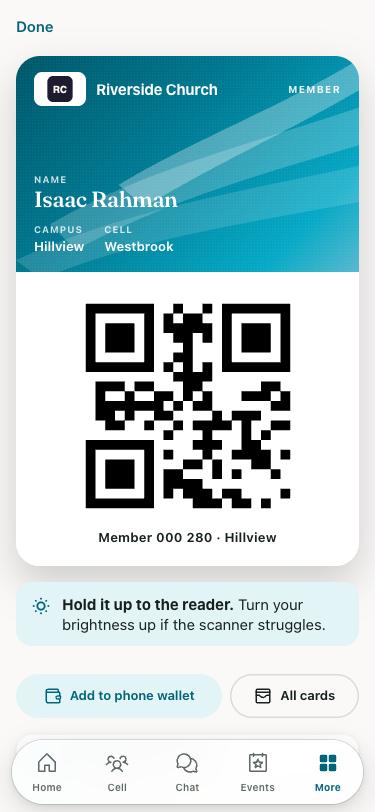
- Close it. Tap Done.
If something looks different
"Showing your saved card — it could not be refreshed just now." Belonging couldn't check your details, so it is showing the copy saved the last time you opened your card. You can still show it.
"Turn your brightness up if the scanner struggles." Your phone won't let Belonging keep the screen awake. Turn the brightness up yourself while you hold the card up.
"Wallet passes are coming soon. Your QR code works as it is." You tapped Add to phone wallet. Cards can't be added to your phone's wallet yet; show the card in Belonging.
Was this helpful?
Still stuck? Ask the Belonging team: open Help in the app (on a phone it’s under More; on a computer, click your name at the bottom of the menu) and choose Ask the app team. The answer comes to your email.