Make the words bigger
If the words are hard to read, make them bigger. The change shows straight away, all through Belonging.
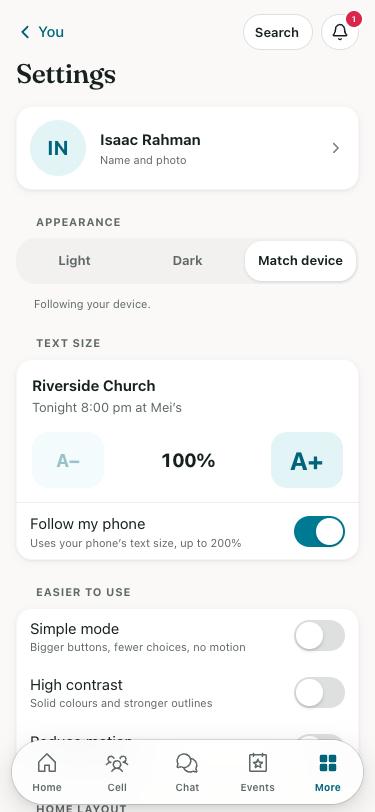
- Open Text size. On a phone, tap More at the bottom right, then Text size (under Settings). On a computer, click your name at the bottom of the menu on the left, then the gear (Settings) at the top, and scroll to Text size.
- Tap a size. The bar has five: XS (80%), S (90%), M (100%, the normal size, in the middle), L
(125%) and XL (150%). Tap L or XL for bigger words. The sample above the bar shows how it will look.
- Too big? Tap a smaller size, or M to go back to normal. On S and XS the smallest labels, such as times and counts, stay at their normal size so they are still easy to read.
Belonging remembers your size on this phone or computer only. If you use Belonging on another device, set it there too.
If something looks different
Follow my phone is switched on Belonging is using your phone's own text size, up to 150%. Tapping a size switches Follow my phone off and uses your choice instead. Switch it back on to go back to your phone's size.
Was this helpful?
Still stuck? Ask the Belonging team: open Help in the app (on a phone it’s under More; on a computer, click your name at the bottom of the menu) and choose Ask the app team. The answer comes to your email.