Turn Simple mode back on
Simple mode shows the app with a few big buttons, bigger words and no motion: Home, Give and Help at the bottom, and one thing on each screen. It is for members. Leaders and administrators don't have it.
If you are 60 or over, the app starts in Simple mode until you choose for yourself. After that, your own choice always wins.
-
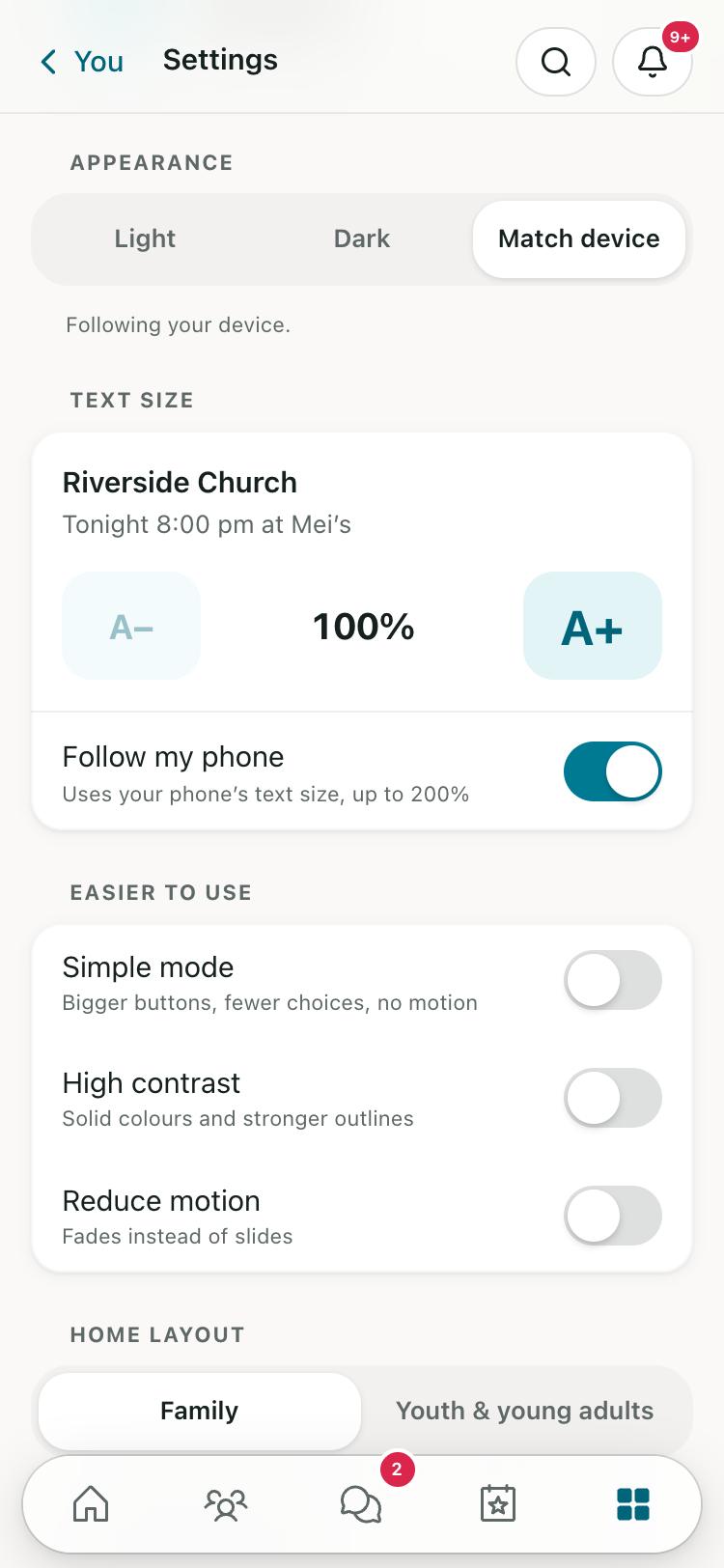
Open Settings. On a phone, tap More at the bottom right, then Simple mode (under Settings). On a computer, click your name at the bottom of the menu on the left, then the gear (Settings) at the top.
-
Switch on Simple mode. It's under Easier to use. The app asks "Use Simple mode?". Tap Switch to Simple mode.
Just switched it off?
For 7 days after you switch Simple mode off, Home shows Want Simple mode back? at the top. Tap Back to Simple and you're back straight away. Tap Hide for today if you'd rather not see it today; it comes back tomorrow.
Switch Simple mode off
In Simple mode, tap More on Home, then Switch Simple mode off. It happens in one tap, and Undo stays on the screen until you close it, in case you didn't mean to. You can also switch it off in Text size.
If something looks different
There's no Simple mode switch in Settings Simple mode is for members only. If you lead a group, a unit or the church, or you're an administrator, it isn't there.
Simple mode is on, on a phone I haven't used before Your choice is saved with your account, so it follows you. Switch it off on any phone and it's off everywhere.
Some rows are missing from Settings Simple mode hides some choices, such as Account & security and Communities. Switch Simple mode off to see them.
Reduce motion can't be switched off It says "Always on in Simple mode". Switch Simple mode off first.
Was this helpful?
Still stuck? Ask the Belonging team: open Help in the app (on a phone it’s under More; on a computer, click your name at the bottom of the menu) and choose Ask the app team. The answer comes to your email.