Invite members
An invitation brings someone into your community and places them in a group. You can invite many people at once, or copy a link for one person. Use a computer: on a phone, this page only shows invitations worth a nudge.
-
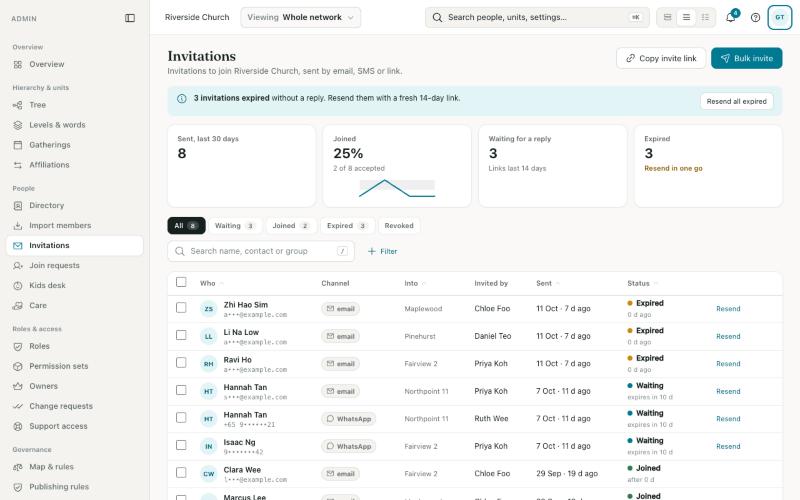
Open Invitations. In the admin menu, under People, choose Invitations.
-
Start a bulk invite. Select Bulk invite.
-
Paste your people. In People to invite, put one person per line: a name, then an email address or a mobile number. You can paste straight from a spreadsheet.
-
Check the preview. Preview shows who is ready and who isn't, before anything is sent. Each person gets an email or a text, depending on what you gave.
-
Choose where they belong. In Place in, pick their group. Everyone in this send joins that group, so send once per group. In Link lasts, choose 7, 14 or 30 days.
-
Check the message. Message has a short welcome you can change.
-
Send. Select the send button (for example Send 12 invitations).
Invite one person with a link
- Copy a link. Select Copy invite link. If you're looking at more than one group, choose the group in Place in and how long the link lasts, then select Copy invite link again.
- Send it yourself. Paste the link into a message. It works for one person only. Whoever opens it gives their name and email address.
Follow up
The list shows every invitation. Use All, Waiting, Joined, Expired and Revoked to narrow it.
- Resend sends a waiting or expired invitation again with a fresh link. Resend all expired does every expired one at once.
- Revoke stops a link working straight away. You can send a new invitation later.
People can also ask to join from your community's join page. See Approve join requests.
If something looks different
"Already invited" That person already has an invitation waiting, or appears twice in your list. They're left out of this send.
"No valid email or phone" The line has no email address or mobile number we can read. Fix it, or leave it out.
"Bulk invites are sent from a computer." On a phone you can resend or revoke, but new invitations need a computer.
Was this helpful?
Still stuck? Write to the Belonging teamOpen Help and choose Ask the app team.