Approve join requests
When someone asks to join through your community's join page, their request is routed to a group and its leader. Leaders usually answer their own, but you can see and answer every request in your community, and chase the ones that are waiting too long. Use a computer: on a phone you can only approve or suggest another group.
-
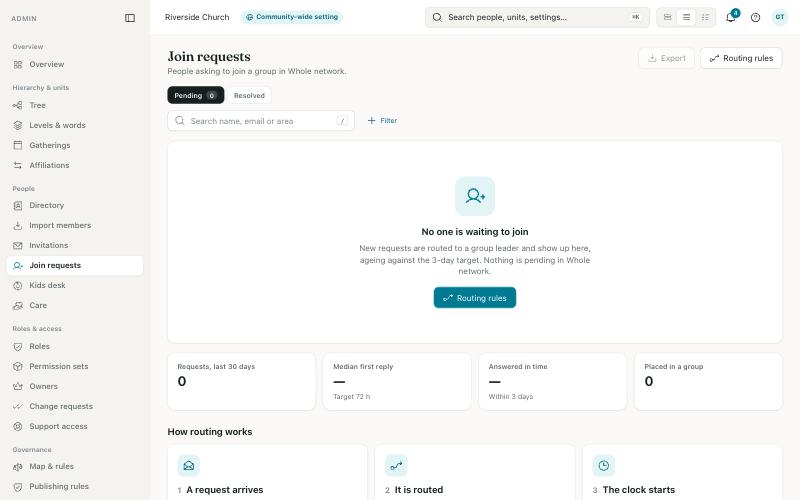
Open Join requests. In the admin menu, under People, choose Join requests. Pending lists who is waiting, the group they were routed to, and how long they've waited.
-
Open a request. Select a row to see the person, their message and where the request was Routed to.
-
Answer it. Choose one:
- Approve places them in the group named on the request. Its leader is told.
- Suggest another offers a better-fitting group. Pick it under Suggested group, add a note if you like, and select Send suggestion. The person is emailed the suggestion, and the group's leader is copied.
- Decline asks for a Reason. Leave Also tell them the reason in the email on to include it in the reply, or switch it off to send the reply without it. The reason stays on the request either way. Then select Decline.
-
Chase a slow answer. If a request has waited past its target, select Nudge to remind the leader it was routed to.
Approved, suggested and declined requests move to Resolved.
Choose how requests are routed
Select Routing rules to choose how new requests find a group: the nearest group first, a match on life stage and age band, skipping groups that are full, and whether leaders are told by notification and email. You can also set the Target response time, and after how long a request shows as escalated to the leader above. Select Save rules. Changes apply to new requests.
If something looks different
"No one is waiting to join" There are no pending requests in the part of your community you're looking at.
"This request has already been reviewed" A leader answered it first. Nothing more to do.
"That did not work. Please try again." The answer didn't go through. Try again.
Was this helpful?
Still stuck? Write to the Belonging teamOpen Help and choose Ask the app team.