Export the directory
You can download the people in your directory as a spreadsheet file. Every export is logged with who made it, the scope and the number of rows. Exports with personal details are guarded: more than 50 rows with a personal field need a second approver before the file is made.
-
Open the Directory. In the admin menu, under People, choose Directory.
-
Narrow the list first. The export follows what you're looking at: the part of your community chosen at the top, the view, and your search. To export only some people, tick them and use Export in the bar that appears.
-
Select Export. It's at the top of the page. Export people opens, showing the Scope and the number of Rows.
-
Choose the fields. Under Fields, tick what you need: Name and member no., Placement, Email, Phone and Date of birth. Fields marked personal hold private details.
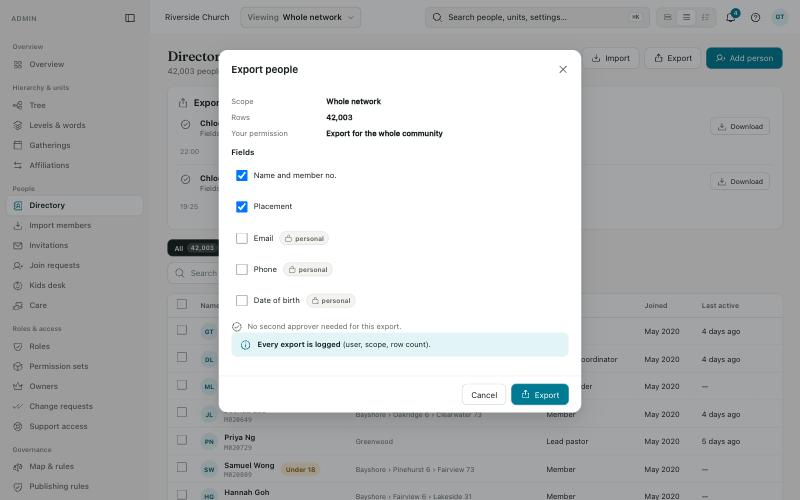
-
Export. Select Export. The file downloads straight away, and the message reads, for example, "Exported 42 rows · logged".
The three most recent exports are listed under Export log at the top of the Directory. Select Download on one of yours to fetch the file again.
Exports that need a second approver
If you ask for more than 50 rows with a personal field, the box says "More than 50 rows with personal fields: a second approver must agree before the file is made." Fill in Why you need it, which the second approver reads, and select Send for approval. The export shows as Waiting for a second approver in the Export log. The second approver must be someone else who can export for the whole community.
To skip the wait, leave the personal fields out, or export 50 people or fewer at a time.
If something looks different
"Choose at least one field" Tick at least one field before you export.
"The export was made, but the file could not be downloaded. Try Download in the export log." The export is saved. Select Download next to it in the Export log.
"Your role doesn’t include Export" Your role can't export people. Organisers can, unless your community has changed your role's access.
Was this helpful?
Still stuck? Write to the Belonging teamOpen Help and choose Ask the app team.