Take a course and get your certificate
This is for communities that use Courses & Learning. If you can’t find it in your app, your community hasn’t switched it on.
A course is a short set of lessons: a video, a document or something to read. Your community chooses which courses to offer. In the app the page is called Bible study, whatever your community uses its courses for.
- Open Bible study. On a phone, tap More, then Bible study & courses (under Grow). On a computer, click
your name at the bottom of the menu on the left, then Bible study & courses.
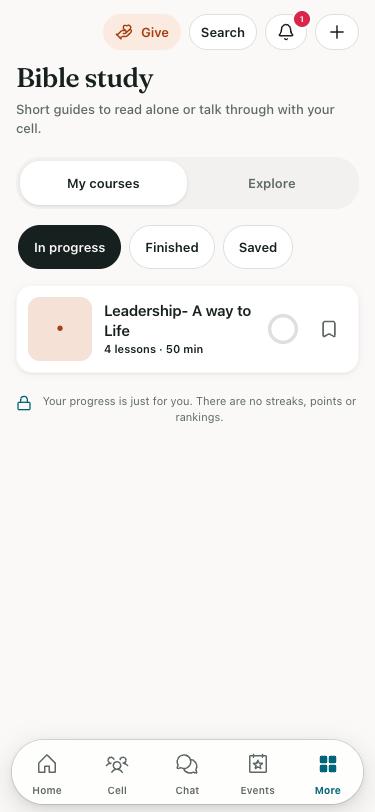
- Find a course. Tap Explore. Search by title or topic, or tap a topic. To keep a course for later, tap its bookmark: you'll see "Saved. Find it under My courses."
- Tap Enroll Now. Open the course and tap Enroll Now at the bottom. You'll see "You are enrolled".
- Tap Start Course. The first lesson opens. Watch it, read it, or open its document. Open Resource opens a document on its own, and Read aloud reads a written lesson to you, where your phone or browser can.
- Tap Mark as done. The next lesson opens. To see every lesson and how many you've done, tap Course Contents, or use Previous and Next.
You don't have to finish in one go. The course you're furthest along in is at the top of Bible study, under Continue: tap it to open your next lesson. All the courses you've started are under My courses, then In progress. On a course's own page, tap Continue Learning.
Your progress is just for you. If your community uses points, finishing lessons earns you some: see See your points and level.
Get your certificate
When you mark the last lesson as done, you'll see Course finished.
- Tap Download Certificate. While it says Generating..., Belonging is making the certificate on your phone or computer. It's saved as a PDF with your name, the course, today's date and your community's name.
- Find it again later. Under My courses, tap Finished, then open the course. Tap View certificate, then Download Certificate.
"Your certificate is private. Download it if you want to share it with someone." Belonging doesn't post it anywhere.
Finished? Tell others what you thought: see Review a course.
If something looks different
There's no Enroll Now You're already enrolled: the button says Start Course or Continue Learning.
The lessons can't be opened Enrol first. Lessons open once you've tapped Enroll Now.
"Enrol to save your progress" You opened a lesson without enrolling. Tap it to go back to the course, then tap Enroll Now.
"We could not enrol you. Please try again." or "We could not mark this lesson as done. Please try again." Nothing was saved. Check your connection and tap the button again.
"This video provider does not allow playback inside Belonging." Tap Open video to watch it on its own site, then come back and tap Mark as done.
"Failed to generate certificate. Please try again." Reload the page and tap Download Certificate again.
"No courses yet" Your community hasn't published any courses: "When courses are available, they will appear here."
A course you bookmarked isn't in Saved Course bookmarks are kept on the Bible study page, under My courses, then Saved.
Was this helpful?
Still stuck? Ask the Belonging team: open Help in the app (on a phone it’s under More; on a computer, click your name at the bottom of the menu) and choose Ask the app team. The answer comes to your email.