Review a course
This is for communities that use Courses & Learning. If you can’t find it in your app, your community hasn’t switched it on.
Once you're enrolled in a course, you can rate it and say a few words about it. Your review shows with your name on the course's page.
-
Open the course. On Bible study, select the course you're enrolled in.
-
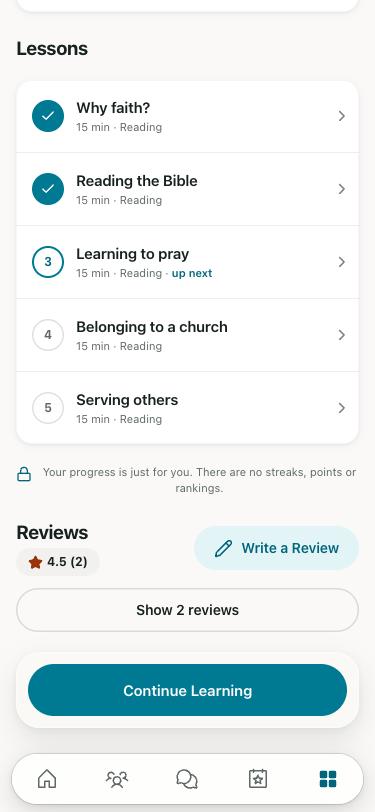
Find Reviews. Scroll to Reviews and choose Write a Review.
-
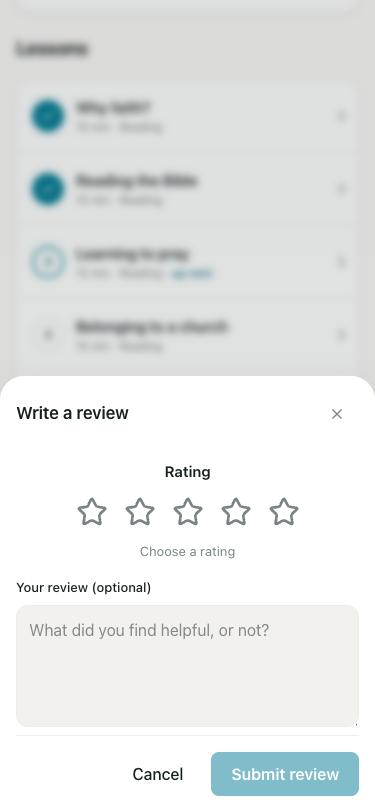
Choose a rating. Under Rating, pick from one to five stars.
-
Add a few words if you like. Your review (optional) asks "What did you find helpful, or not?".
-
Submit. Choose Submit review.
Changed your mind? Write a review again. Your new one replaces the old one.
Reading other people's reviews
Next to Reviews you see the average rating and how many people gave one. Choose Show to read them. Reviews by someone you've blocked, or who has blocked you, aren't shown, though their rating still counts in the average.
If something looks different
There's no Write a Review button. You need to enrol in the course first. The page says "Enrol in this course to write a review."
"Please choose a star rating." A review needs a rating. Pick the stars, then choose Submit review again.
A review says "Former member". The person who wrote it has left and had their account erased. Their review and rating stay.
See Take a course and get your certificate to enrol.
Was this helpful?
Still stuck? Ask the Belonging team: open Help in the app (on a phone it’s under More; on a computer, click your name at the bottom of the menu) and choose Ask the app team. The answer comes to your email.