Watch or listen to a message
This is for communities that use Sermons & media. If you can’t find it in your app, your community hasn’t switched it on.
Your community's recorded messages and podcasts are in Watch & listen. The app calls them messages or sermons; in your community they may be talks. Belonging remembers where you stopped, so you can come back to one later.
- Open Watch & listen. Tap Watch & listen at the top of Home. On a phone you can also tap More, then
Watch & listen. On a computer, it's also in the menu on the left.
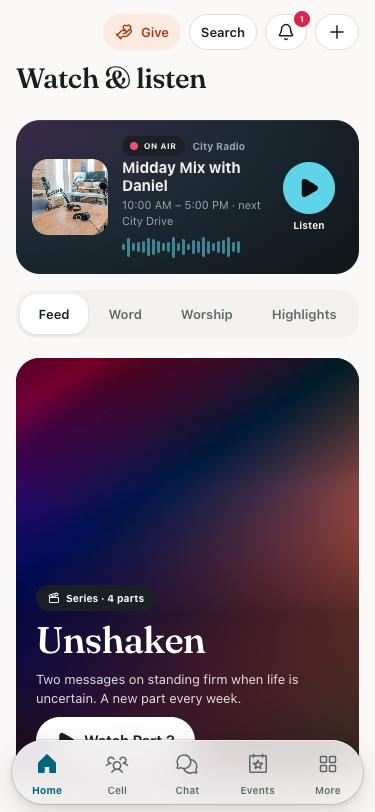
- Pick a message. Feed shows the newest under Latest messages. Tap All to see every message on the Word tab, grouped by series, then More messages and Podcasts. For messages in another language, tap EN, 中文 or BM at the top of Word. A headphones icon means there's sound only.
- Press play. Tap a message to open its page, then press play. If you've played some of it before, it starts where you stopped; some show Resume from and the time instead: tap it.
The newest message may also be at the top of Home, as This week’s sermon (or Last week’s sermon). Tap Play, or Resume if you've started it.
The player
In Belonging's own player, the buttons either side of play skip back or forward 15 seconds. Below the picture, the captions button turns captions on or off, the speed button (1×) changes the speed, and the last button fills the screen. A message from another site, such as YouTube, plays with that site's own controls instead.
Under the title
- Listen only hides the picture and keeps the sound, to save data. Tap Watch video to bring the picture back. It's greyed out on messages that can't do this.
- Save keeps the message in Saved: you'll see "Saved to My saved". Tap Saved to take it out again.
- Share opens your phone's share options. Where there aren't any, it copies a link and says "Link copied".
- Read opens the summary and the transcript. Choose a language at the top. Tap a line of the transcript to play from there.
- The reactions below the buttons (pray, love, praise and laugh) show how many people chose each. Tap one to add yours, and tap it again to take it back.
Chapters, Notes and Up next
At the bottom of the page:
- Chapters: the parts of the message. Tap one to jump there.
- Notes: the main points, sometimes with a quote. Tap Share this line to send the quote.
- Up next: more to watch, such as the next part of a series.
If you're in a group, you'll also see "Talk about it with" and your group's name. Tap Open chat to say what stood out to you.
Come back later
Messages you've started are under Continue watching on the Feed tab, with how far you got. Once you finish one, it drops off that list.
Messages you saved are in Saved, under Watch & listen. On a phone, Saved is in More. On a computer, click your name at the bottom of the menu on the left, then Saved.
For songs and short clips, see Listen to worship songs and watch highlights.
If something looks different
"Nothing here yet" Your community hasn't added any messages to Watch & listen yet.
Some buttons can't be tapped The message plays from another site, such as YouTube. Listen only, the chapters and the transcript lines only work in Belonging's own player.
"Chapters appear after the service team adds them, usually by Monday." The chapters haven't been added yet. "Notes appear after the service team adds them." means the same for the notes.
"The summary and transcript appear after the service team checks them, usually by Monday." The text isn't ready yet. If it names a language ("The 中文 transcript isn’t available yet."), try another language.
"This video couldn’t be played. Please try again in a moment." Check your connection and press play again.
"There is no video or audio attached to this yet." The message has been added without its recording. Try again later.
Was this helpful?
Still stuck? Ask the Belonging team: open Help in the app (on a phone it’s under More; on a computer, click your name at the bottom of the menu) and choose Ask the app team. The answer comes to your email.