Pin your best badges
This is for communities that use Gamification. If you can’t find it in your app, your community hasn’t switched it on.
Pick up to three badges you've earned to feature. Other members see them on your Passport, under Featured Achievements Showcase.
-
Open Points and standings. On a phone, tap More, then My journey (under Grow). On a computer, click your name at the bottom of the menu on the left, then My journey (under Your progress). At the bottom of My journey, tap Points and standings.
-
Find the badge. Under Milestone Badges, the badges you've earned are in full colour. The others are faded.
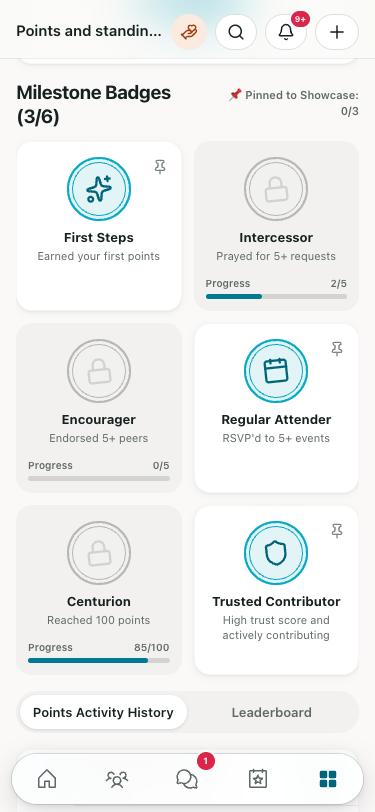
-
Tap the pin. It's in the corner of each badge you've earned. You'll see "Badge Pinned to Showcase", and the count next to Milestone Badges goes up, for example "📌 Pinned to Showcase: 1/3".
To unpin a badge, tap its pin again. You'll see "Badge Unpinned".
Who sees your pinned badges
Other members see them when they open your Passport, once you've shared it. See Share your Passport with members. Your Passport needs your community to use RealMe 360 as well.
If something looks different
"Showcase Limit Reached" You've already pinned three badges. Unpin one, then pin the new one.
There's no pin on a badge You haven't earned that badge yet.
"Pin to showcase on RealMe" That's what the pin says when you point at it on a computer. Pinned badges show on your Passport.
Was this helpful?
Still stuck? Ask the Belonging team: open Help in the app (on a phone it’s under More; on a computer, click your name at the bottom of the menu) and choose Ask the app team. The answer comes to your email.