Hide yourself from the leaderboard
This is for communities that use Gamification. If you can’t find it in your app, your community hasn’t switched it on.
Leaderboards show the members with the most points. If you'd rather not be on them, hide yourself. You keep your points, your level and your badges.
-
Open Points and standings. On a phone, tap More, then My journey (under Grow). On a computer, click your name at the bottom of the menu on the left, then My journey (under Your progress). At the bottom of My journey, tap Points and standings.
-
Tap Leaderboard. It's next to Points Activity History, below your badges.
-
Switch on Hide me from leaderboards. It's under the list: "Others won't see you; you still see your own points and badges." The change is saved straight away.
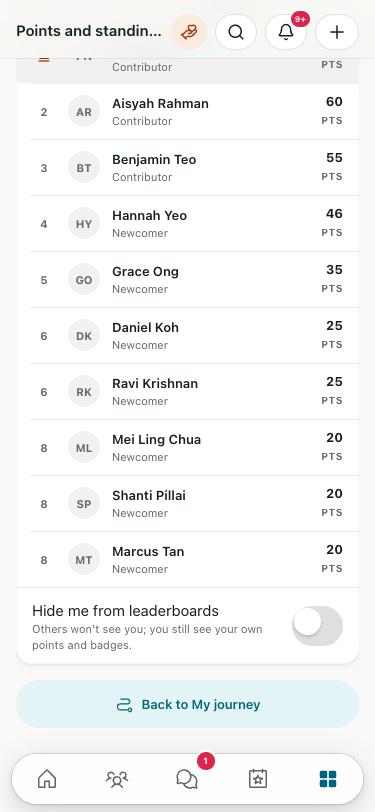
To be on the leaderboards again, switch it off.
Looking at the leaderboard
Top 10 Leaderboard shows the ten members with the most points. Choose All time or Past 7 days, and Community or one of your own groups, such as "My cell" (named with your community's own word). You're marked You.
If something looks different
There's no Hide me from leaderboards switch Your community doesn't let members hide from leaderboards.
"This community does not allow hiding from leaderboards" Your community changed this setting while the page was open. You can't hide yourself.
"Leaderboards are not shown in this community." Your community has switched leaderboards off, or shows them only to some people, such as leaders.
Was this helpful?
Still stuck? Ask the Belonging team: open Help in the app (on a phone it’s under More; on a computer, click your name at the bottom of the menu) and choose Ask the app team. The answer comes to your email.