See where your gift goes
This is for communities that use Giving & Campaigns. If you can’t find it in your app, your community hasn’t switched it on.
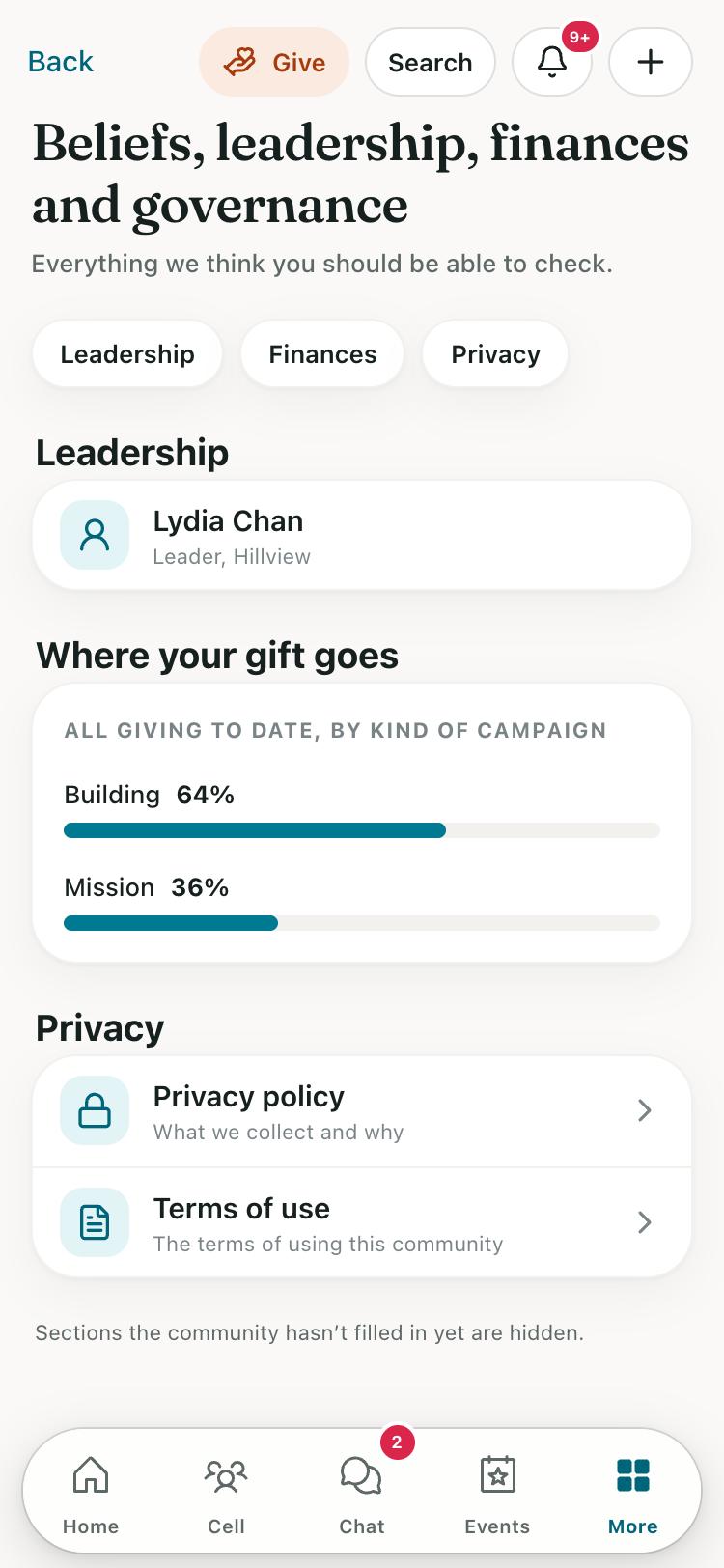
Your community's Trust & governance page shows where giving goes: all the giving recorded in Belonging so far, shared out by kind of campaign. It shows percentages only, never amounts or names.
-
Open it. Tap Give at the top of the screen, then Where your gift goes at the bottom of the sheet. Or, on a phone, tap More, then Trust & governance (under Community). On a computer, click your name at the bottom of the menu on the left, then All features, then Trust & governance.
-
Look under Where your gift goes. Tap Finances at the top to jump there. "All giving to date, by kind of campaign": each kind has its share as a percentage, with a bar to compare them.
-
See the rest of the page. Leadership lists the leader of each of your community's campuses. Under Privacy are the Privacy policy and the Terms of use.
Looking for your own gifts? They're in My giving, which only you can see. See About giving.
If something looks different
"No giving has been recorded yet, so there is nothing to show." Nobody has given through Belonging in your community yet.
"We couldn't load this just now. Try again in a moment." Belonging couldn't get the figures. Check your connection and open the page again later.
There's no Leadership section "Sections the community hasn't filled in yet are hidden." Your community hasn't named leaders for its campuses.
Was this helpful?
Still stuck? Ask the Belonging team: open Help in the app (on a phone it’s under More; on a computer, click your name at the bottom of the menu) and choose Ask the app team. The answer comes to your email.