Give every month
This is for communities that use Giving & Campaigns. If you can’t find it in your app, your community hasn’t switched it on.
A monthly gift is taken once now and then every month after, until you change, pause or stop it.
-
Tap Give. It's at the top of the screen, on a phone and on a computer. On a small phone it may show only its icon, a heart in a hand.
-
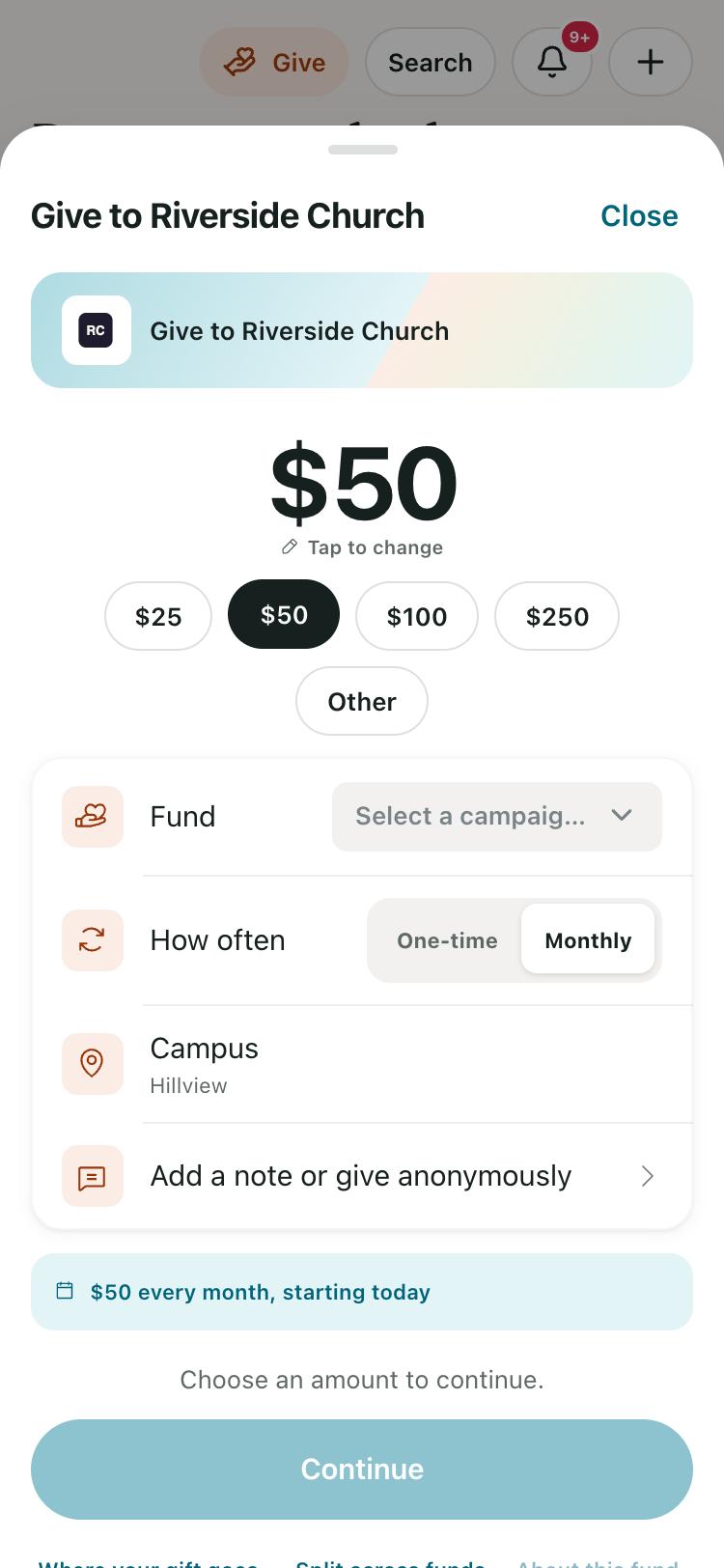
Choose an amount. Tap one of the amounts, or tap Other and key in your own. (If Belonging remembers a usual gift, it's already filled in: tap the amount to change it.)
-
Choose the fund. Next to Fund, pick where your gift goes.
-
Choose Monthly. Under How often, tap Monthly. Belonging shows the amount "every month, starting today".
-
Tap Continue. Check the summary, then tap Continue to secure page.
-
Pay. If you have a card saved, you'll see Confirm your gift: tap Confirm gift. Otherwise your community's secure payment page opens, where you finish.
Your thank-you says when the next gift is due. Your monthly gift then shows in My giving, under Recurring, with "Your gift continues automatically." To change the amount later, or to pause or stop the gift, see Change, pause or stop a monthly gift.
If something looks different
There's no weekly option Belonging offers One-time and Monthly gifts.
"Choose an amount to continue." Continue stays greyed out until you've chosen an amount that is at least the smallest amount allowed.
"Choose a fund to continue." You've chosen an amount, but not where it goes. Pick one under Fund.
"Nothing was given. Your amount is kept if you come back." You tapped Cancel before paying. Nothing was taken.
Was this helpful?
Still stuck? Ask the Belonging team: open Help in the app (on a phone it’s under More; on a computer, click your name at the bottom of the menu) and choose Ask the app team. The answer comes to your email.