Give the same as last time
This is for communities that use Giving & Campaigns. If you can’t find it in your app, your community hasn’t switched it on.
Belonging remembers your last gift: the fund, the amount and how often. When you open Give, it is already filled in.
- Tap Give. It's at the top of the screen, on a phone and on a computer. On a small phone it may show only its icon, a heart in a hand. On a computer you can also click Give in the menu on the left.
- Check your usual gift. The top line says "Your usual:" with the fund, the amount and how often. Fund and
How often are already set. To change the amount, tap it.
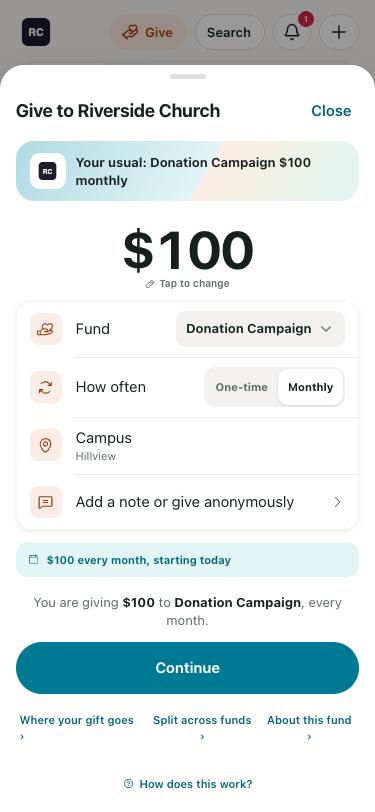
- Choose how often. Under How often, pick One-time to give once, or Monthly to give this amount every month.
- Tap Continue. Check the summary, then tap Continue to secure page.
- Pay. If you have a card saved, you'll see Confirm your gift: tap Confirm gift. Otherwise your community's secure payment page opens, where you finish paying.
- That's it. You'll see your thank-you and "Receipt sent to your email". Tap Done, or View my giving to see your gifts.
Already giving monthly? Your regular gift carries on by itself, so there's no need to give it again. Choose One-time if you'd like to give something extra. To change your monthly gift instead, see Change, pause or stop a monthly gift.
If something looks different
No "Your usual" line You haven't given before, or the fund you gave to last time has closed. Choose an amount and a Fund yourself.
"No active campaigns right now" There's nothing to give to at the moment. Ask your community's office.
"Nothing was given. Your amount is kept if you come back." You tapped Cancel before paying. Nothing was taken.
"We couldn't start your donation. Try again." Your gift didn't go through. Check your connection and try again.
No Give button Your community doesn't take gifts in Belonging.
Was this helpful?
Still stuck? Ask the Belonging team: open Help in the app (on a phone it’s under More; on a computer, click your name at the bottom of the menu) and choose Ask the app team. The answer comes to your email.