Invite a friend to an event
This is for communities that use Events & RSVPs. If you can’t find it in your app, your community hasn’t switched it on.
Going to something and want company? Send a friend the event with a short "Come with me?" invitation.
-
Open the event. In Events, tap the event.
-
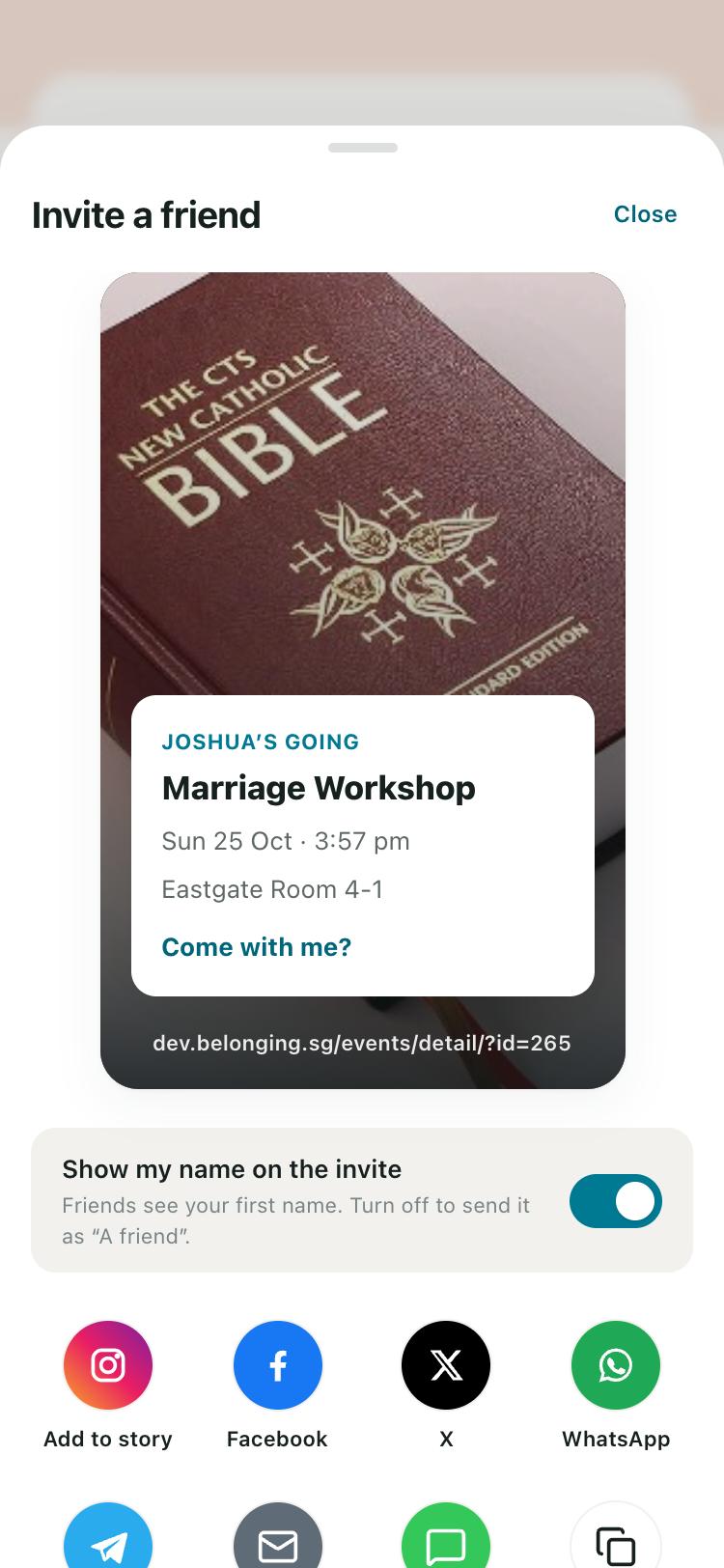
Tap Invite. It's at the bottom, next to RSVP. The Invite a friend sheet shows a preview of what your friend will see.
-
Choose whether to show your name. With Show my name on the invite on, the invitation says your first name is going. Switch it off to send it from "A friend".
-
Send it. Tap WhatsApp, Telegram, Facebook, X, Email or Message. Or tap Copy link and paste the link anywhere. Add to story makes a picture for your Instagram story. Where your phone offers it, More ways to share opens its own share options.
You can also invite from My events (at the top of Events), and from the You're going sheet after you RSVP with Bring a friend (+1).
The link opens the event's page in Belonging, so your friend needs to sign in to your community to see it. Belonging doesn't see who you send it to.
If something looks different
"Under 18: initials only, and only the campus is shown." If you're under 18, your name is off to start with. Switched on, the invitation shows only your initials, and it never shows a room or address.
"Picture saved. Open Instagram and add it to your story." Your phone couldn't share the picture directly, so Belonging saved it instead. Add it to your story from Instagram.
"Couldn't make the picture. Try another way." Use one of the other ways to send it, such as Copy link.
No Invite button The event is over.
Was this helpful?
Still stuck? Ask the Belonging team: open Help in the app (on a phone it’s under More; on a computer, click your name at the bottom of the menu) and choose Ask the app team. The answer comes to your email.