Add an event to your calendar
This is for communities that use Events & RSVPs. If you can’t find it in your app, your community hasn’t switched it on.
Belonging can give you a calendar file for any event, which your phone or computer adds to its own calendar.
-
Open the event. In Events, tap the event.
-
Tap Add. It's at the end of the row with the event's date and the words "Add to your calendar".
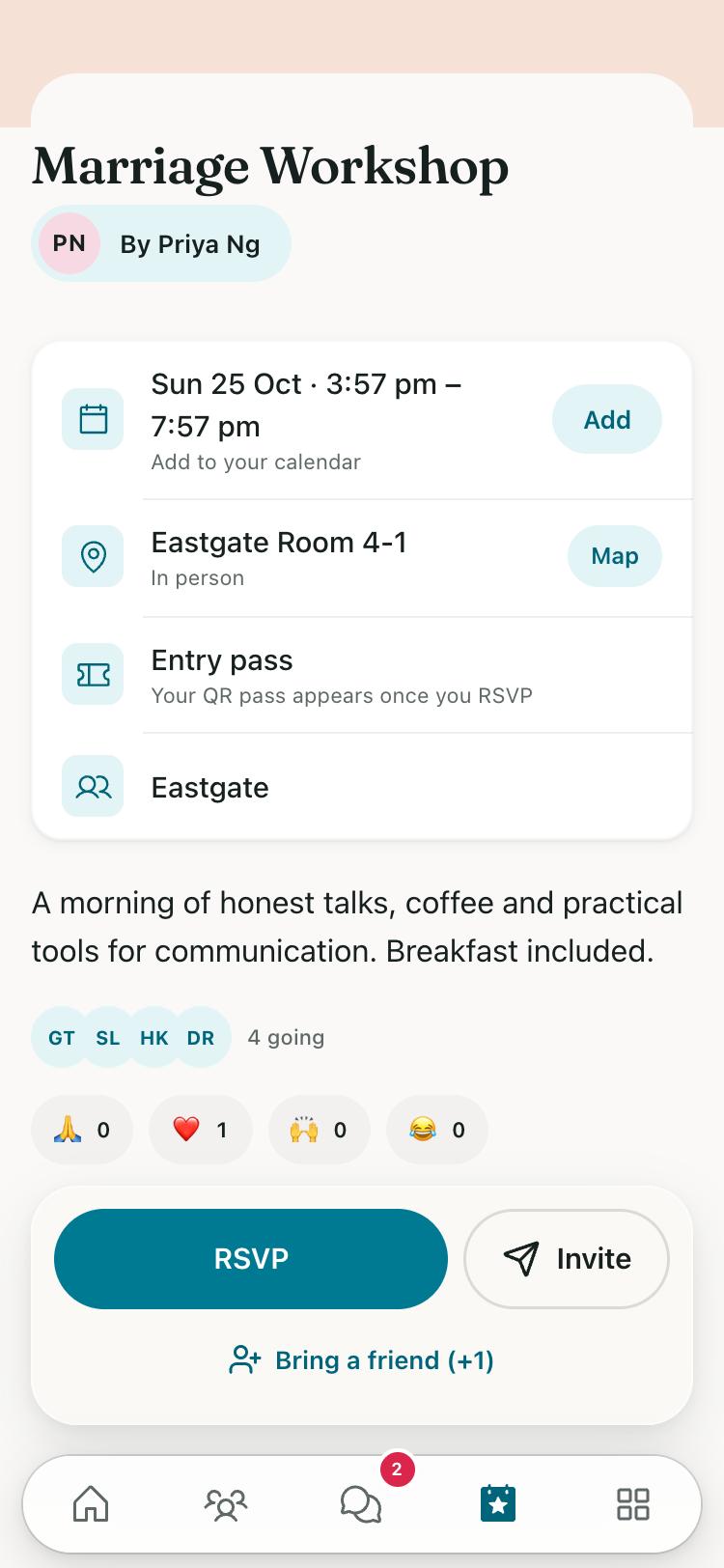
-
Choose Apple / Outlook (.ics). Belonging downloads a calendar file for the event. Open the file to add the event to your calendar.
You can do the same from My events (at the top of Events): each event you're going to has an Add to Calendar button. On your group's page, the Next meeting card has Add to calendar too, which downloads the file straight away.
If something looks different
The time or place changed after you added it The file is a copy of the event as it was when you downloaded it. Download it again to get the new details.
Was this helpful?
Still stuck? Ask the Belonging team: open Help in the app (on a phone it’s under More; on a computer, click your name at the bottom of the menu) and choose Ask the app team. The answer comes to your email.