See who changed what
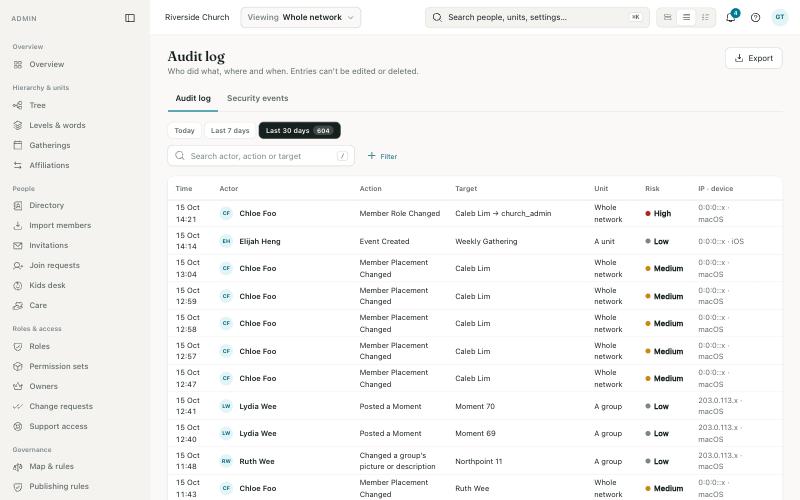
The audit log records who did what in your community, where and when. Entries can't be edited or deleted, so it's the place to check when you need to know how something changed.
-
Open the audit log. In the admin menu, under Audit & security, choose Audit log.
-
Choose a time window. Pick Today, Last 7 days or Last 30 days.
-
Search. Type a name, an action or what was changed in Search actor, action or target. The Action column says what happened in plain words, such as "Signed in" or "Owner added". Search matches the action's short code, which you see in small type under the words when you open an entry, so search for one word of it, such as "role".
-
Narrow by risk. Select Filter, then High risk, Medium risk or Low risk.
-
Open an entry. Select a row to see the full entry: the Actor, the Target, What happened and the Recorded changes, with the time and the IP · device it came from.
-
Export if you need a copy. Select Export to download what you're looking at as a CSV file. The export is recorded in the audit log too.
Other places that keep a record
- Security events, the second tab on the same page, lists changes to roles and access, identity checks and support access. It shows whether the record is intact. Select Verify now to check it again.
- A member's profile has a Reveal log: who revealed which private detail, when, and why.
- Change requests, under Roles & access, keeps every request that needed a second Owner. Choose All to see decided ones too.
If something looks different
"Nothing recorded in this window" Try a longer window or clear the search. The audit log page shows up to the last 30 days.
An entry says "via support access". Someone from Belonging's support team did it during a support session. Open the entry to see the details.
Was this helpful?
Still stuck? Write to the Belonging teamOpen Help and choose Ask the app team.