Review approvals
This is for communities that use Approvals & Review. If you can’t find it in your app, your community hasn’t switched it on.
When your community's rules say a post needs checking first, it waits in Approvals: announcements, prayers, events, jobs, marketplace listings, testimonies and giving campaigns. You see what's waiting across your community, exactly as members will see it.
-
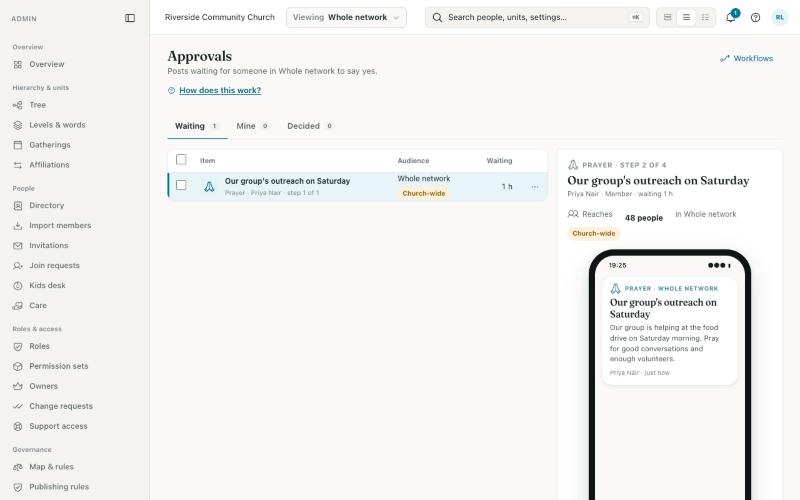
Open Approvals. In the admin menu, under Approvals, choose Approvals. Waiting lists what needs a decision. Each row says what kind of post it is, who wrote it, and which step of your community's approval chain it has reached, for example "step 2 of 3". Posts that would reach the whole community are marked Church-wide.
-
Open a post. Select a row. The preview shows the post and who it would reach.
-
Decide. Choose one:
- Approve publishes it, or passes it to the next step if its chain has more than one. The message says which: "It’s live for members now" or "It moves to the next step".
- Ask for changes sends it back to the author. Write what should change in What should change? and select Send back. They can fix it and send it again.
- Decline turns it down for good. Write the Reason (shown to the author) and select Decline.
The author is told about your decision. Every decision is recorded in the audit log.
To approve several at once, tick them and select the approve button (for example Approve 3). Church-wide posts you haven't opened yet are held back, so you look at each before it reaches everyone.
Mine shows posts you sent that are waiting. Decided shows what's been approved, sent back or declined.
If something looks different
"Someone else must approve this." Nobody approves their own post, organisers included. Another reviewer has to.
"Add a note so they know what to change" Asking for changes and declining both need a note for the author.
"Couldn’t load approvals" The Approvals & Review module may be off. Switch it on in Features under Settings.
To choose which posts need approval in the first place, see Set publishing rules.
Was this helpful?
Still stuck? Write to the Belonging teamOpen Help and choose Ask the app team.