Find a mentor
This is for communities that use Mentorship. If you can’t find it in your app, your community hasn’t switched it on.
Mentorship suggests people in your own community who'd like to mentor someone. You choose who to ask.
- Open Mentorship. On a phone, tap More, then Mentorship (under Grow). On a computer, click
Mentorship in the menu on the left.
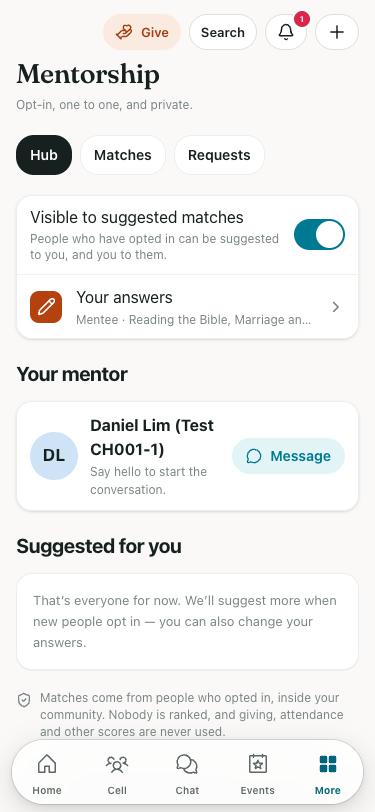
- Tap I'd like a mentor. It's under "Someone to walk with".
- Answer the questions. They come one at a time, starting with "What would you like to grow in?" (pick up to three, then tap Next). Tap an answer to move on, or tap Skip this question. Your answers are saved as you go.
- Check your answers. "Ready to see suggestions" lists them. Tap one to change it.
- Tap Turn on and see suggestions. Suggested for you opens. Each person's card says why they were suggested.
- Choose someone. Tap Ask and their name. If someone isn't right for you, tap Not for me instead. They won't be told.
- Send your request. A short note is written for you. Change it if you like. The sheet shows what they'll see. Tap Send request. You'll see "Sent!" and that they'll get a notification and can accept or decline.
When they answer
You'll get a notification. Your request is in Requests, under Sent:
- Request sent: they haven't answered yet. Most people reply within a week. Tap Withdraw to take it back.
- Accepted: tap Say hello. Your chat opens in Chats, where you can arrange when to meet.
- Not this time: "That is okay. It is nothing about you." Tap See suggestions to ask someone else.
If something looks different
"That's everyone for now" Nobody else who suits you has turned Mentorship on yet. Belonging suggests more when they do. You can also tap Change my answers.
No suggestions at all, ever Mentorship is only for adults, and Belonging uses your date of birth to tell. If your profile doesn't have one, open your profile and tap Edit, then Edit more personal details. Tap Edit profile, fill in Date of birth and tap Save. See Update your personal details.
"Your profile is hidden, so you will not appear in anyone's matches." Visible to suggested matches is off. Switch it on at the top of Mentorship.
"Your assessment is … complete. Finish it for better matches." Some questions haven't been answered or skipped yet. Tap Finish assessment.
A card says Request sent instead of Ask You've already asked them, and they haven't answered yet. Tap Request sent to see your request.
"We could not turn that on. Please try again." Mentorship didn't turn on. Check your connection and tap the button again.
Was this helpful?
Still stuck? Ask the Belonging team: open Help in the app (on a phone it’s under More; on a computer, click your name at the bottom of the menu) and choose Ask the app team. The answer comes to your email.