Log a follow-up
When you've been in touch with someone outside the app, say so, and they leave your follow-up list for now.
Log one person
-
Open Follow-ups. On Lead, choose Follow-ups.
-
Select their name. A sheet opens with ways to get in touch.
-
Say what you did. Under Already in touch?, choose I called, I visited, I said hi or We had coffee. The app says "Logged." and that they're off your list for now.
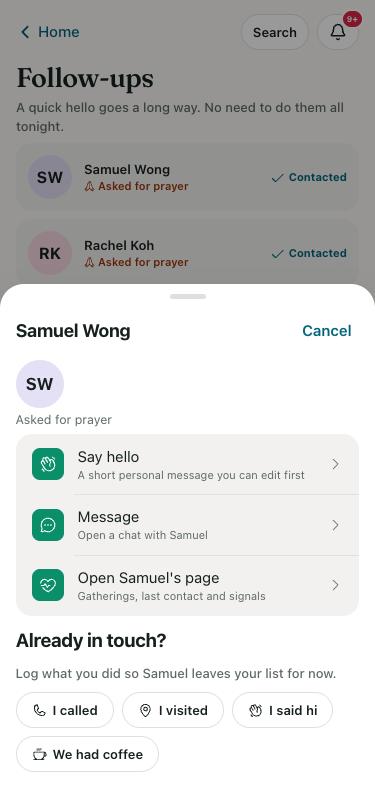
The person is marked Contacted. Chose the wrong person? Choose Undo next to Contacted straight away.
Log several at once
- Open Log follow-ups. If you lead one group, the Leading card on Home has a Log follow-ups button.
- Tap everyone you reached. The page asks Who did you reach?. Each person you tap changes from Not yet to Reached.
- Pick how. Under How, choose Called, Messaged, Invited to service, Invited to cell or Coffee.
- Save. Choose the button at the bottom, for example Save 3 follow-ups.
The message after saving reminds you that the leader above you sees the counts, not your notes.
If something looks different
"We could not take that back. It may be too late to undo." A logged contact can only be undone shortly after you log it.
"Everyone was there" There's nobody on your follow-up list right now, so there's nothing to log.
See See who's been missing for who's on the list and why.
Was this helpful?
Still stuck? Ask the Belonging team: open Help in the app (on a phone it’s under More; on a computer, click your name at the bottom of the menu) and choose Ask the app team. The answer comes to your email.