Set up a fund or campaign
This is for communities that use Giving & Campaigns. If you can’t find it in your app, your community hasn’t switched it on.
Every gift goes to a fund. Set one up for each thing you raise money for, such as a general fund, a building fund or a missions appeal. Members can give to it as soon as you create it.
-
Open Funds & campaigns. In the admin menu, under Giving & payments, choose Funds & campaigns. It's also a tab on the Giving dashboard.
-
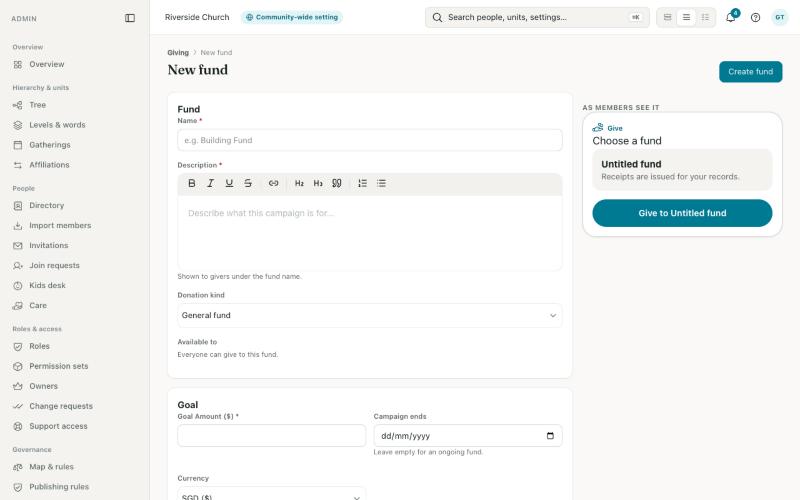
Start a fund. Select New fund.
-
Describe it. Under Fund, give it a Name and a Description ("Shown to givers under the fund name"). Pick the Donation kind: Offering, Tithe, General fund, Missions, Building fund or Benevolence. A new fund starts on Offering.
-
Set a goal. Under Goal, enter the Goal Amount. To make it a campaign with an end, set Campaign ends; leave it empty for an ongoing fund. Show progress to members decides whether members see a progress bar and the total given, or only the goal.
-
Check tax receipts. Under Tax receipts, the fund follows your community's setting unless you switch Gifts to this fund are tax-deductible on or off. Note shown on receipts is optional: empty, your community's wording is used.
-
Check the preview. As members see it shows the fund in the Give sheet as you type.
-
Create it. Select Create fund. You'll see "Created" with the fund's name.
If your community runs giving separately for each branch, Available to lets you choose a branch or the whole community. You choose this under Settings, Community profile, in Where giving is run.
Change or close a fund later
On Funds & campaigns, select the fund's name. Change what you need and select Save changes.
Funds are never deleted, so past gifts stay correct. To stop giving to one, select Close fund, then Close fund again to confirm: people can no longer give to it, and past gifts stay exactly as they are. Reopen fund opens it again.
If something looks different
"Give the fund a name" or "Say what the fund is for" The Name and Description both need filling in.
"A fund with that name already exists" Choose a different name.
"The currency can't change once a gift has been received." Once someone has given, the currency stays as it is.
Was this helpful?
Still stuck? Write to the Belonging teamOpen Help and choose Ask the app team.