Create an event
This is for communities that use Events & RSVPs. If you can’t find it in your app, your community hasn’t switched it on.
You can create an event in the admin portal, in Content studio, or from Events in the member app. Both use the same form.
-
Open Events in Content studio. In the admin menu, under Content studio, choose Events.
-
Start a new event. Select New, then Event. The page is called New event.
-
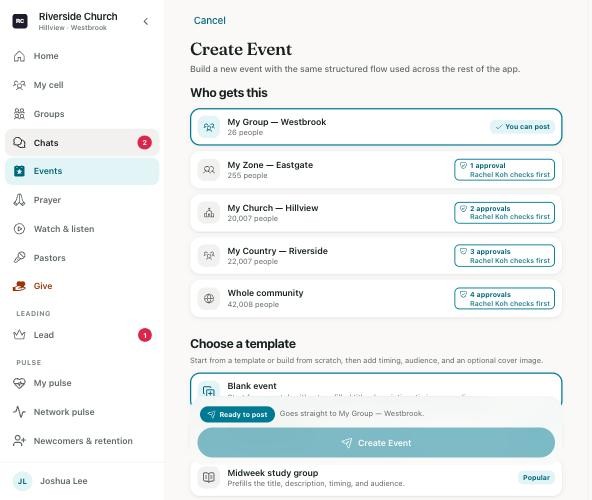
Choose who gets it. Under Who gets this, pick the audience. The line above the form says what will happen, for example "Goes live for" your whole community when you publish, or who checks it first.
-
Pick a starting point. Under Choose a template, choose one, or Blank event.
-
Add the details. Fill in the Event title and Description, then when it Starts and Ends. Under Location, choose In Person or Virtual and add the place or the link.
-
Choose the extras. Attendee visibility decides who can see the list of people going. Under Attendance you can turn on QR passes. Add a Cover image if you have one. The Live preview beside the form shows the event card as members will see it.
-
Publish. Select Publish at the top of the page. You go back to the list of events.
You'll see "Published! Your event is live." To turn on passes and choose who scans them in, see Turn on QR attendance for an event.
To change an event later, select its row in Events and choose Edit, then Save changes. Duplicate starts a new event from a copy.
From the member app
Open Events and select + (Create event). The form is the same. The bar at the bottom says Ready to post when it goes straight out; select Create event. In the member app you post as yourself, so who you can reach depends on what you lead there.
If something looks different
The button says Submit for approval. Someone has to approve the event before it goes out. The line above the form says who checks it. In the member app the bar says "Needs a check" and the button reads, for example, Send to Pastor Lim to check. After you send it, you'll see "Sent for approval. Your event will be published once it's approved."
"You cannot post to …" You can't reach that audience, so the button can't be selected. Choose a smaller one under Who gets this.
"Choose which group this is for." Pick an audience under Who gets this first.
"Check before you continue" The start time is in the past, or the event is shorter than a minute. Select Go back to fix it, or Continue anyway.
Was this helpful?
Still stuck? Write to the Belonging teamOpen Help and choose Ask the app team.